

Appearance
Search, sort, and columns
Search, sort, and columns help you find the right listings and see the information you need, without scrolling through your entire inventory.
You can use them from My listings, where you have four tools:
- Search finds listings by the words in their title.
- Sort puts your listings in order, for example by price or date.
- Columns let you choose which information the table shows, and in what order.
- Pages split your listings into smaller groups.
You can use them together with filters and views. For example, open the Sold view and search for "Nike" to see only your sold Nike listings.
These tools only change what you see in Crosslist. They never change your listings on the marketplaces.
Search
Search finds listings by the words in their title. Use it when you know what an item is called, like "Gucci handbag".
Search doesn't look in SKUs, brands, descriptions, or labels. To find listings by brand, label, or marketplace, use Filters. To find a listing by SKU, sort by the SKU column.
Search your listings
Go to My listings.
Type keywords in the Search a listing bar above your listings.
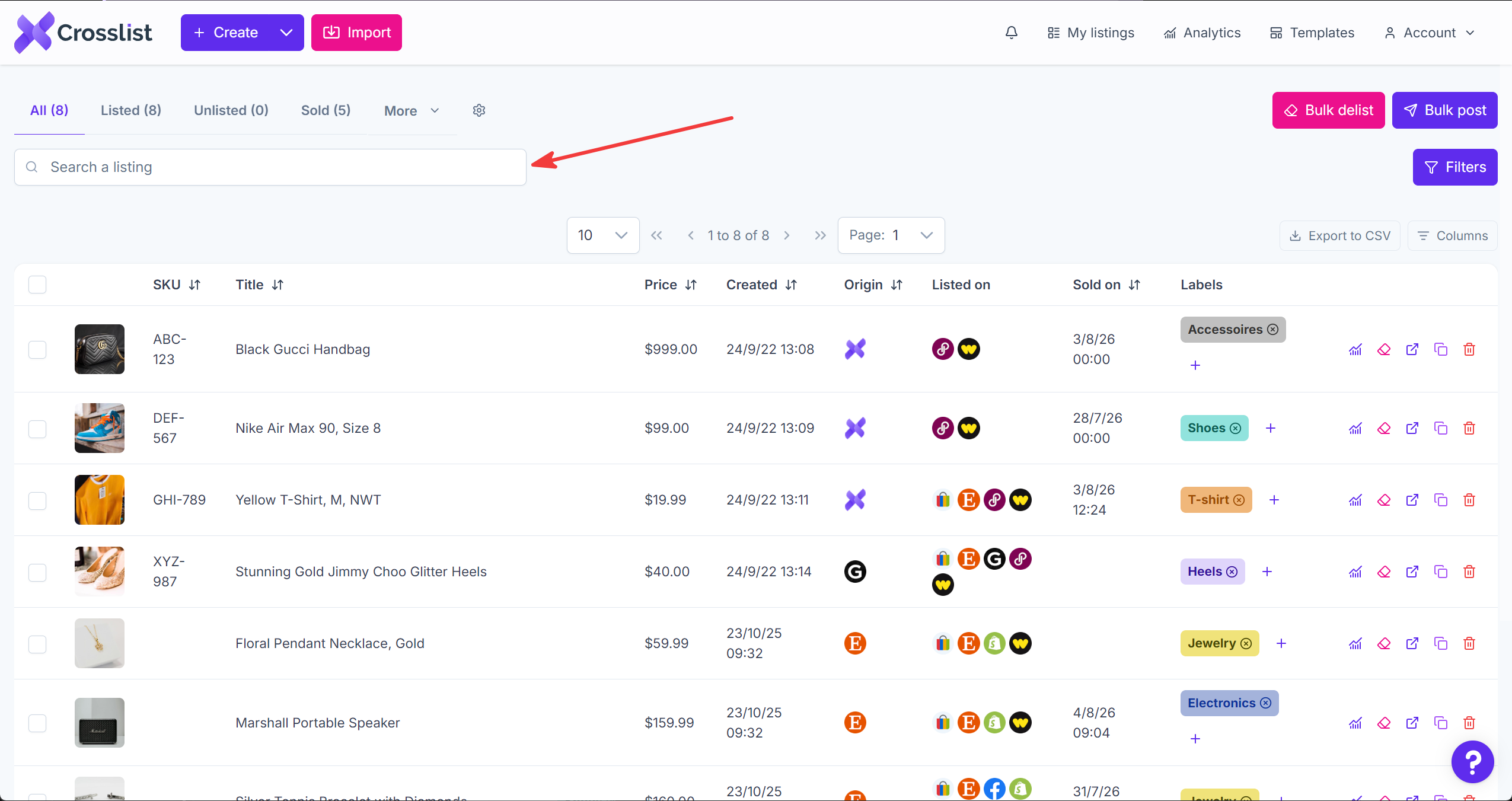
The table updates to show only listings with those words in the title. The number above the table changes too, so you can see how many listings match.
Clear your search
Click the × in the search bar.
If the table says No listings found, you can also click Clear filters under the message. This clears your search and your filters at the same time.
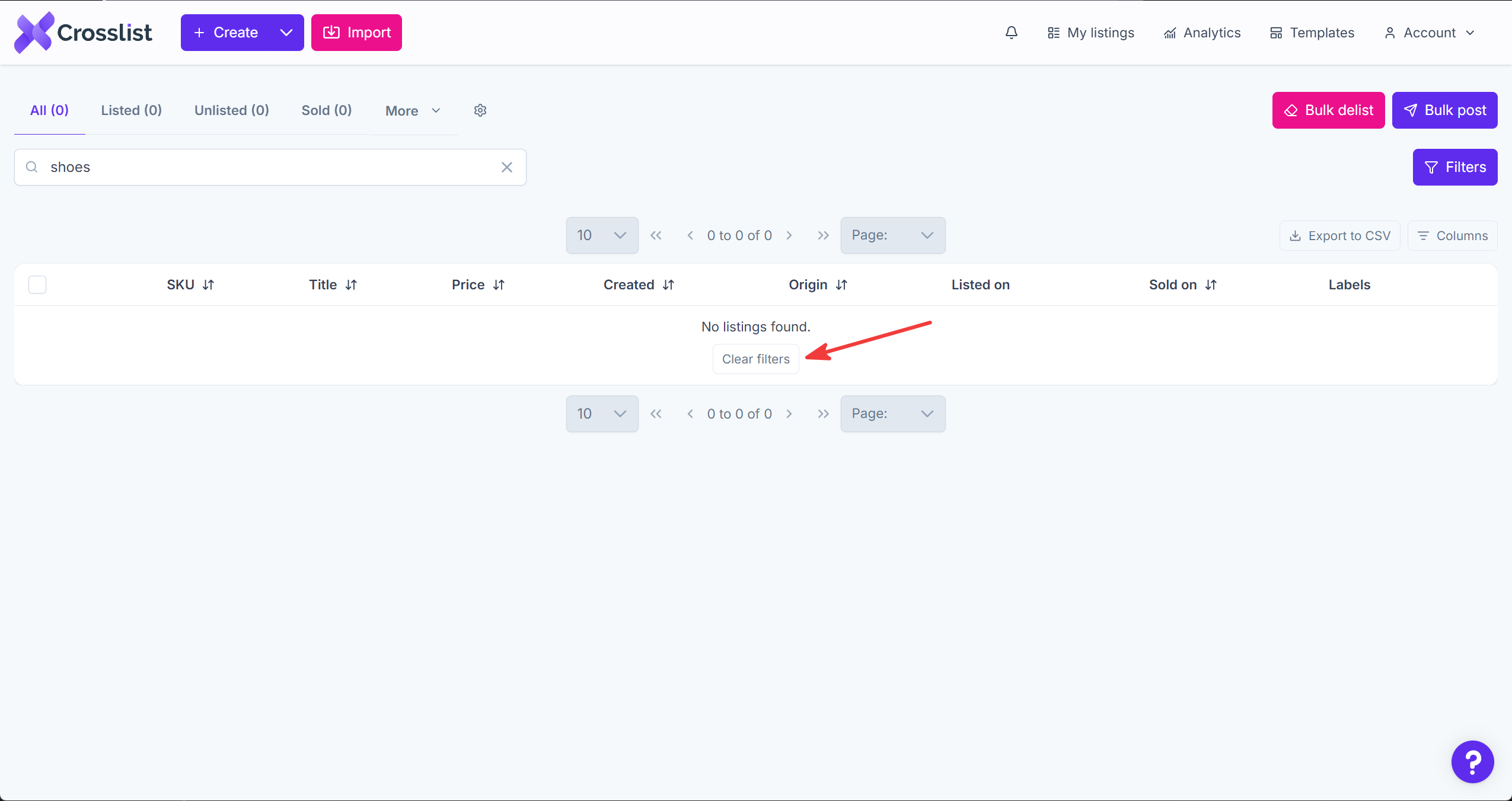
Your search stays on when you refresh the page. It clears when you go to another page, like Templates, and come back.
Sort
Sorting puts your listings in order by one column, for example by price or by the date you created them. By default, your listings are sorted by Created, newest first.
Your sort stays until you change it, even when you leave the page and come back. So if you sorted by price last week, your listings are still sorted by price today.
Sort your listings
- Click a column name with the sort icon (⇅) next to it. This includes optional columns you add, like Brand or Quantity.
- Click it again to reverse the order.
The column you sort by is highlighted, and its icon shows the direction.
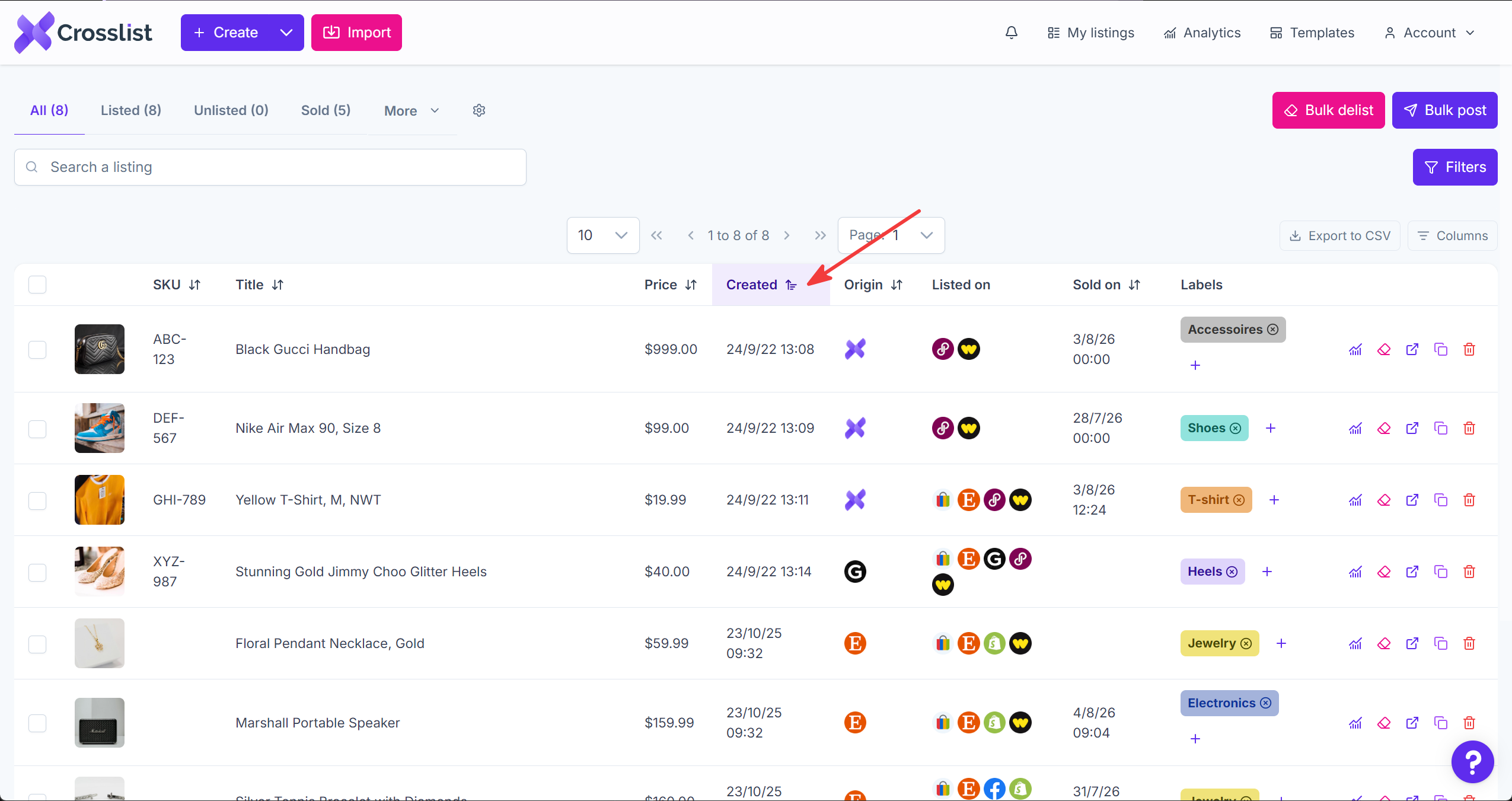
You can sort by one column at a time. Picking a new column replaces the old sort.
Sort directions
| Column type | Examples | One direction | Other direction |
|---|---|---|---|
| Dates | Created, Last modified | Newest first | Oldest first |
| Numbers | Price, Quantity, COGS | Lowest first | Highest first |
| Text | Title, SKU, Brand | A to Z | Z to A |
Reset the sort
Sort by Created until your newest listings are at the top. This is the default order.
Columns
Columns let you choose which information the table shows, and in what order. This way, you only see what you use.
Your column choices are saved to your Crosslist account, so they show up on any computer you log in on. Columns only work on a computer or tablet. On mobile, your listings show as cards.
Show or hide columns
Go to My listings.
Click Columns at the top right of the table, next to Export to CSV.
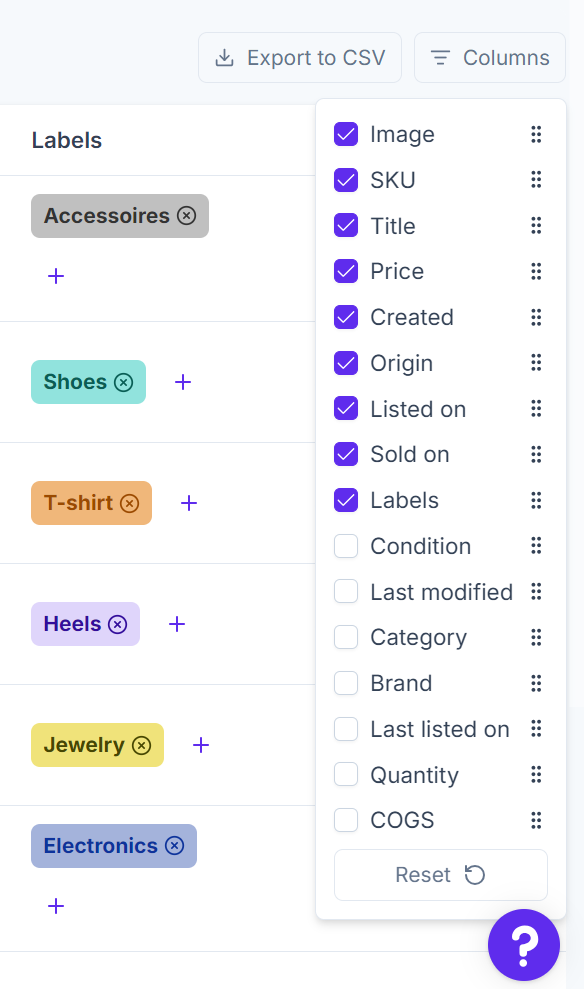
Check the columns you want to see, and uncheck the ones you don't.
Hiding a column doesn't delete any information. You can turn it back on anytime.
Reorder columns
- Click Columns.
- Drag a column by the dots (⠿) on its right. The top of the list is the left side of the table.
Reset your columns
Click Columns, then Reset at the bottom of the list. This brings back the default columns and order.
Available columns
| Column | What it shows | Shown by default |
|---|---|---|
| Image | The listing's main photo | Yes |
| SKU | Your SKU for the item | Yes |
| Title | The listing title | Yes |
| Price | The listing price | Yes |
| Created | When the listing was created in Crosslist | Yes |
| Origin | Where the listing came from: created in Crosslist or imported from a marketplace | Yes |
| Listed on | The marketplaces the item is listed on | Yes |
| Sold on | When and where the item sold | Yes |
| Labels | The labels you added | Yes |
| Condition | The item's condition | No |
| Last modified | When you last edited the listing | No |
| Category | The item's category | No |
| Brand | The item's brand | No |
| Last listed on | When the item was last posted to a marketplace | No |
| Quantity | How many of the item you have | No |
| COGS | Cost of goods sold: what you paid for the item | No |
Pages
Your listings are split into pages, so the table stays fast and easy to read. On a computer, the page controls show above and below the table. On mobile, they show above your listings.

Page controls
| Control | What it does |
|---|---|
| Number dropdown, for example 50 | Sets how many listings show on each page: 10, 20, 30, 50, or 100 |
| 1 to 50 of 670 | Shows which listings you're looking at. Here, listings 1 to 50 out of 670. |
| ‹ and › | Go to the previous or next page |
| « and » | Go to the first or last page |
| Page dropdown | Jumps straight to a page |
The last number in the counter only counts listings that match your current search, filters, and view. It's not always the total of all your listings. If it says 0 to 0 of 0, nothing matches.
Frequently asked questions
Why can't I see my listings?
Your listings are almost always still there. Something on the page is hiding them:
- Search. You only see listings with your search words in the title. A typo or an old search can hide everything. Click the × in the search bar to clear it.
- Filters. You only see listings that match your filters. See Clear your filters.
- View. Views other than All only show part of your inventory. Switch to All, or see Default views.
- Sort. Your sort stays on, even after you leave the page, so a listing can end up on a later page. Sort by Created to see your newest listings first.
- Page. You might be on a later page. Click « to go back to page 1.
If the table says No listings found, click Clear filters. This clears your search and filters in one click.
How do I clear my search?
Click the × in the search bar, or click Clear filters if the table says No listings found. See Clear your search.
What's the difference between search and filters?
Search finds listings by the words in their title. Filters narrow your listings by things like brand, marketplace, label, or condition. You can use both at the same time. See Filters and views.
Can I save my search?
No. Your search clears when you leave the page. To reuse a group of listings, save your filters as a view instead. See Custom views.