

Appearance
Connecting WooCommerce
Crosslist connects to your WooCommerce store through WooCommerce's official API. No Chrome extension needed.
Before you start
Before you can use Crosslist with WooCommerce, you need a WordPress site with WooCommerce installed and active, and an administrator login for that site.
Your site must be publicly reachable over the internet and use https.
Also check that your WordPress permalinks are set to anything other than Plain, under Settings > Permalinks. WooCommerce's API doesn't work with plain permalinks.
How to connect
- Go to Account > Marketplaces.
- Next to WooCommerce, enter your store URL, for example https://www.mystore.com, and click Connect.
- Log in to your WordPress admin panel.
- You should now see the WooCommerce authorization screen.
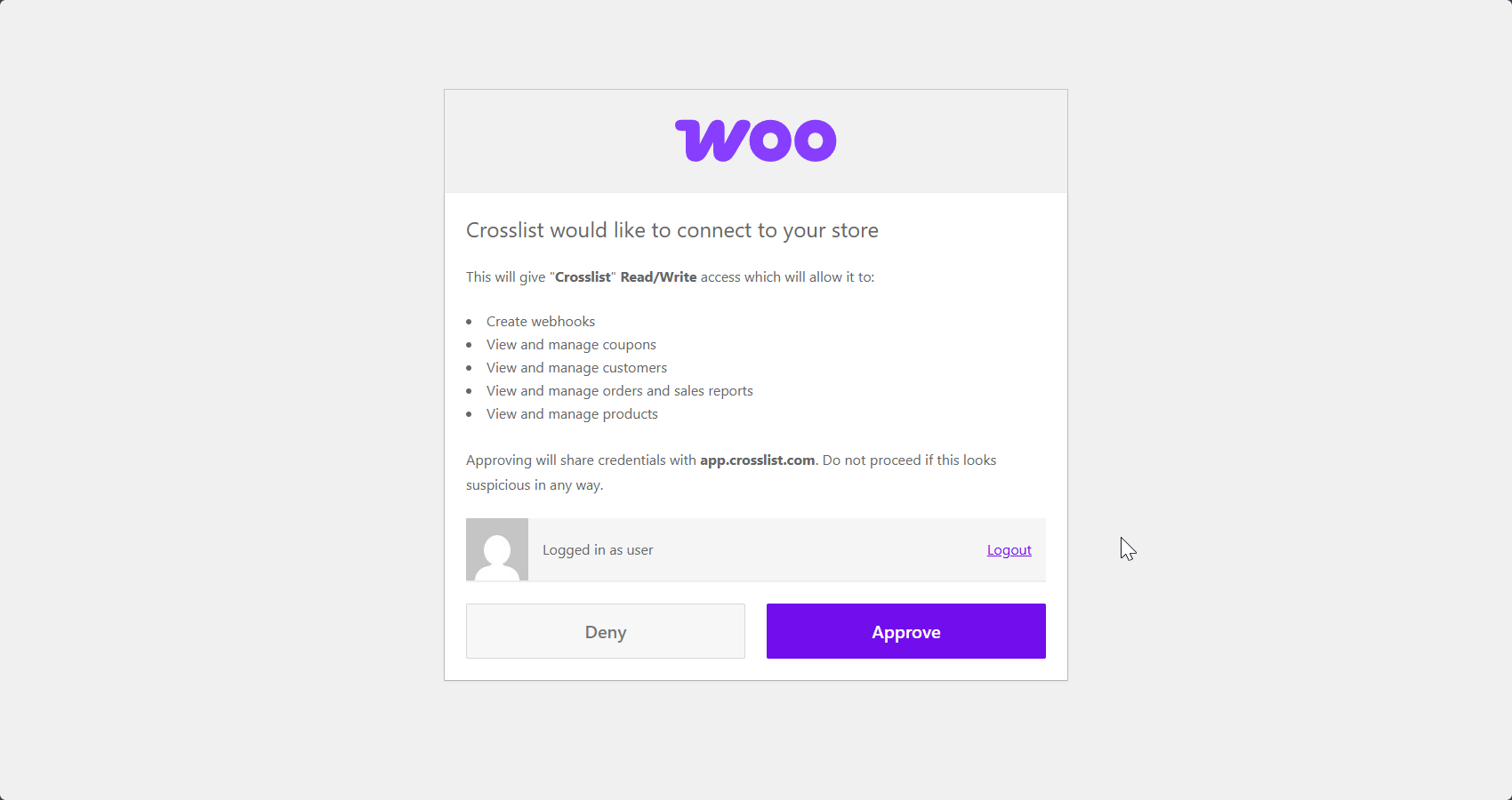
- Click the Approve button. Your WooCommerce account is now connected and you will be redirected to Crosslist automatically.
Common issues and fixes
Crosslist can't connect to my store
First, check that your site is online, loads quickly and uses https, and that your permalinks aren't set to Plain.
Still not working? WooCommerce runs on your own WordPress site, not on a central platform like most marketplaces.
Your hosting provider or a security layer such as Cloudflare, Wordfence or Sucuri may block the requests Crosslist sends to your store.
To fix it, allow Crosslist's API requests through your firewall or security service. Until you do, Crosslist can't create, update or sync your listings.
Don't manage your hosting or security settings yourself? Share this page with your site administrator so they can give Crosslist access.
I connected the wrong store
- Go to Account > Marketplaces and click Disconnect next to WooCommerce.
- Enter the URL of the correct store and connect again.