

Appearance
Filters and views
Filters and views help you organize your inventory, quickly find the right listings, check their statuses, and perform bulk actions without scrolling through your entire inventory.
You can access them from My listings, where you have three ways to organize and filter your listings:
- Filters let you narrow down your listings based on specific criteria.
- Default views let you quickly switch between predefined groups of listings.
- Saved views let you save your favorite filter combinations and access them anytime.
You can use them together. For example, open a saved view and add more filters on top of it.
Filters
Filters are ad hoc. Use them when you need a specific group of listings for a quick task, like checking which items aren't on Poshmark yet. Filters aren't saved. To reuse a set of filters later, save it as a view. See Custom views.
Filter your listings
Go to My listings.
Click Filters on the right.

Choose the filters you want.
Click Apply.
To keep these filters for later, click Save as view instead of Apply.
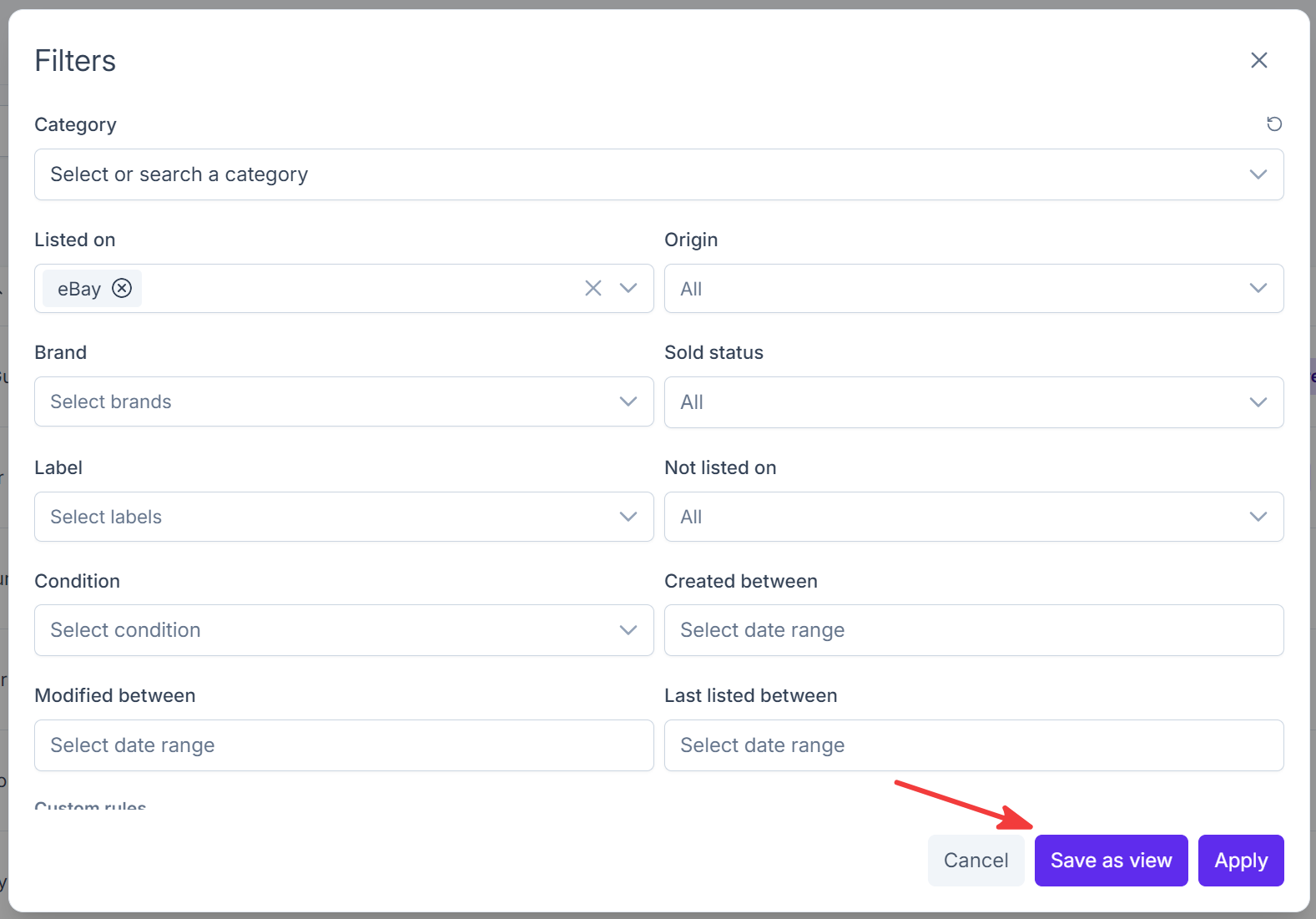
Available filters
| Filter | What it does |
|---|---|
| Category | Shows listings in a category. Type to search categories. |
| Listed on | Shows listings posted to the marketplaces you pick |
| Not listed on | Shows listings missing from a marketplace. Useful when you want to post to a new marketplace or fill gaps. |
| Origin | Shows listings by where they came from: created in Crosslist or imported from a marketplace |
| Brand | Shows listings from one or more brands |
| Sold status | Shows sold or unsold listings. Leave it on All to include both. |
| Label | Shows listings with one or more of your labels |
| Condition | Shows listings with a specific condition |
| Created between | Shows listings created in a date range |
| Modified between | Shows listings last edited in a date range |
| Last listed between | Shows listings last posted to any marketplace in a date range |
Custom rules
Use custom rules when the filters above aren't enough. For example, filter by price, auction start price, or whether a listing accepts offers.

- In the Filters dialog, go to Custom rules.
- Click + AND to add a rule.
- In Select field, choose a field, for example Accept offers, Brand, or Auction start price.
- In Select condition, choose a condition, for example is, is any, or greater than.
- In Enter Value, enter or select a value.
- Click Apply.
Combine rules with AND
Click + AND to add another rule. A listing must match every AND rule to show up.
Combine rules with OR
Click + OR next to a rule to add an alternative to it. A listing shows up if it matches any of the OR options. For example:
- Brand is Nike or Brand is Adidas
- Price is greater than 100 or less than 10
Remove a rule
Click the trash icon next to the rule.
Clear your filters
When you have filters on, a reset icon shows next to Filters and inside the Filters dialog. Click it to clear all filters.

Default views
Default views come with every account. They're always there, so you can jump to your main listing groups in one click.
| View | What it shows |
|---|---|
| All | Every listing in your Crosslist account |
| Listed | Listings that are live on at least one marketplace |
| Unlisted | Listings that aren't live on any marketplace, including drafts |
| Sold | Listings with at least one sale |
The number next to each view shows how many listings it holds.
A listing can show in more than one view. For example, if you sell 1 of 3 pairs of sneakers and the other 2 are still live, the listing shows in both Listed and Sold.
You can't remove the default views, but you can change their order. See Customize your views.
Switch between views
Click a view above your listings.

Custom views
A custom view keeps a set of filters and custom rules under a name. Unlike filters, it stays until you delete it, so you can open it again anytime instead of setting the same filters every time.
You can create as many custom views as you want.
Create a view
You can create a view in two ways.
From the views menu
Click More next to your views. On mobile, tap Show listings.
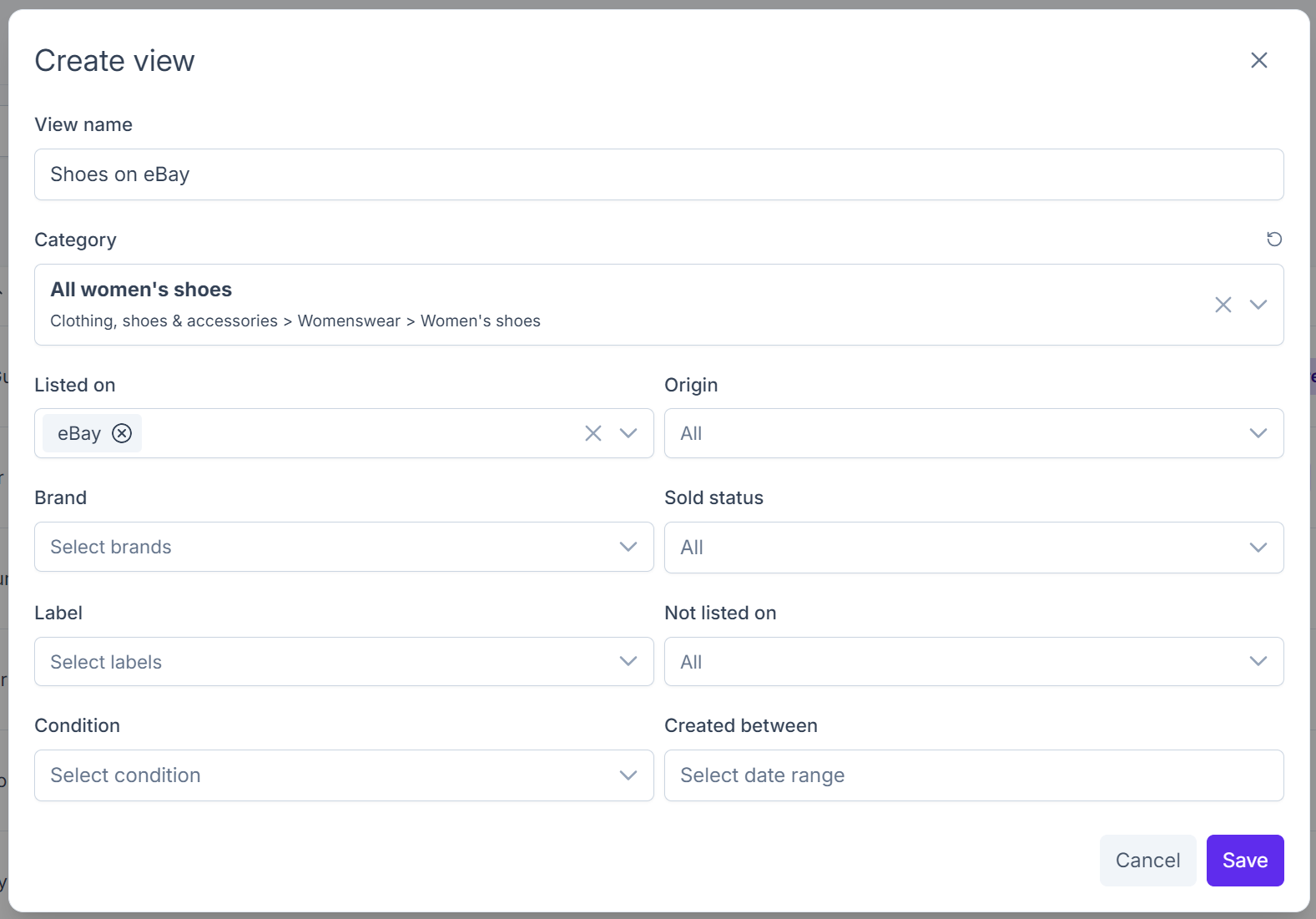
Click Create new view.

Enter a View name, for example "eBay listings under 50".
Choose your filters and custom rules.
Click Save.
From Filters
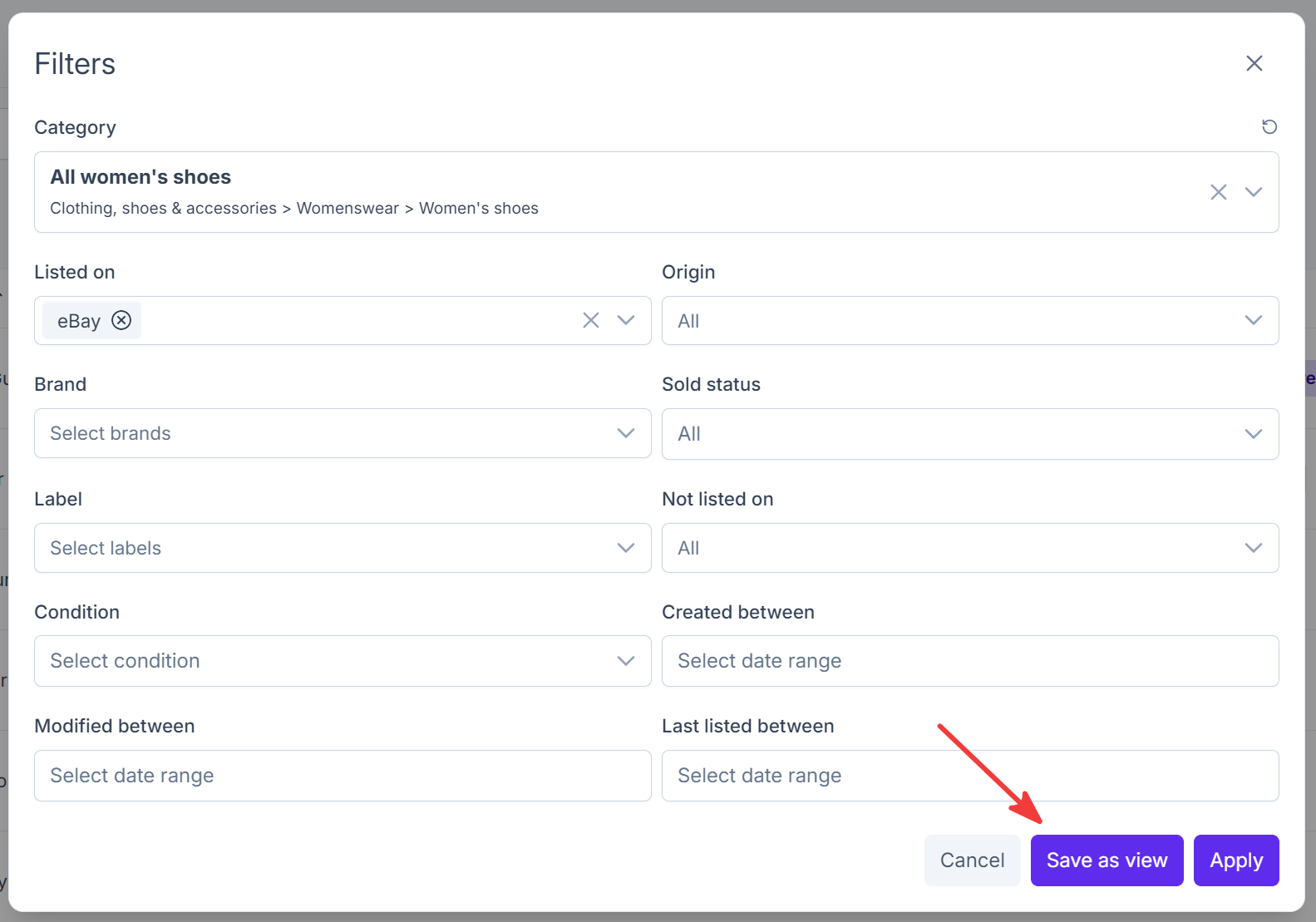
- Click Filters and choose the filters you want.
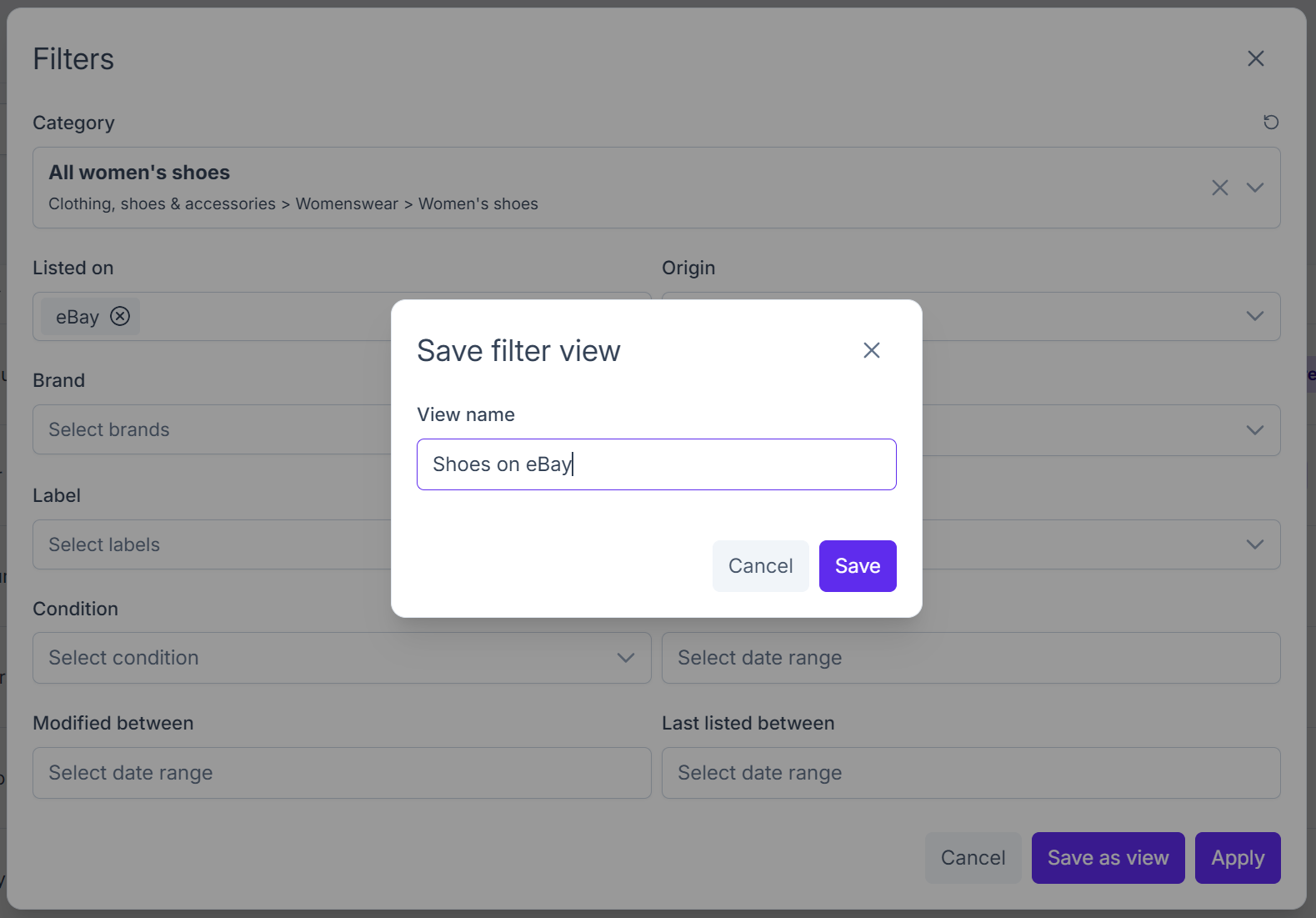
- Click Save as view.
- Enter a name and save.
Open a view
Click More next to your views and select the view. On mobile, tap Show listings and select the view under Views.
The view shows next to your default views while you have it open. To keep it there, pin it. See Customize your views.
Each time you open a view, it loads all listings that match its filters, including new ones.
Add filters to a view
With a view open, click Filters and add more filters on top. Then choose how to save:
- Update the current view with the new filters.
- Save them as a new view and keep the original unchanged.
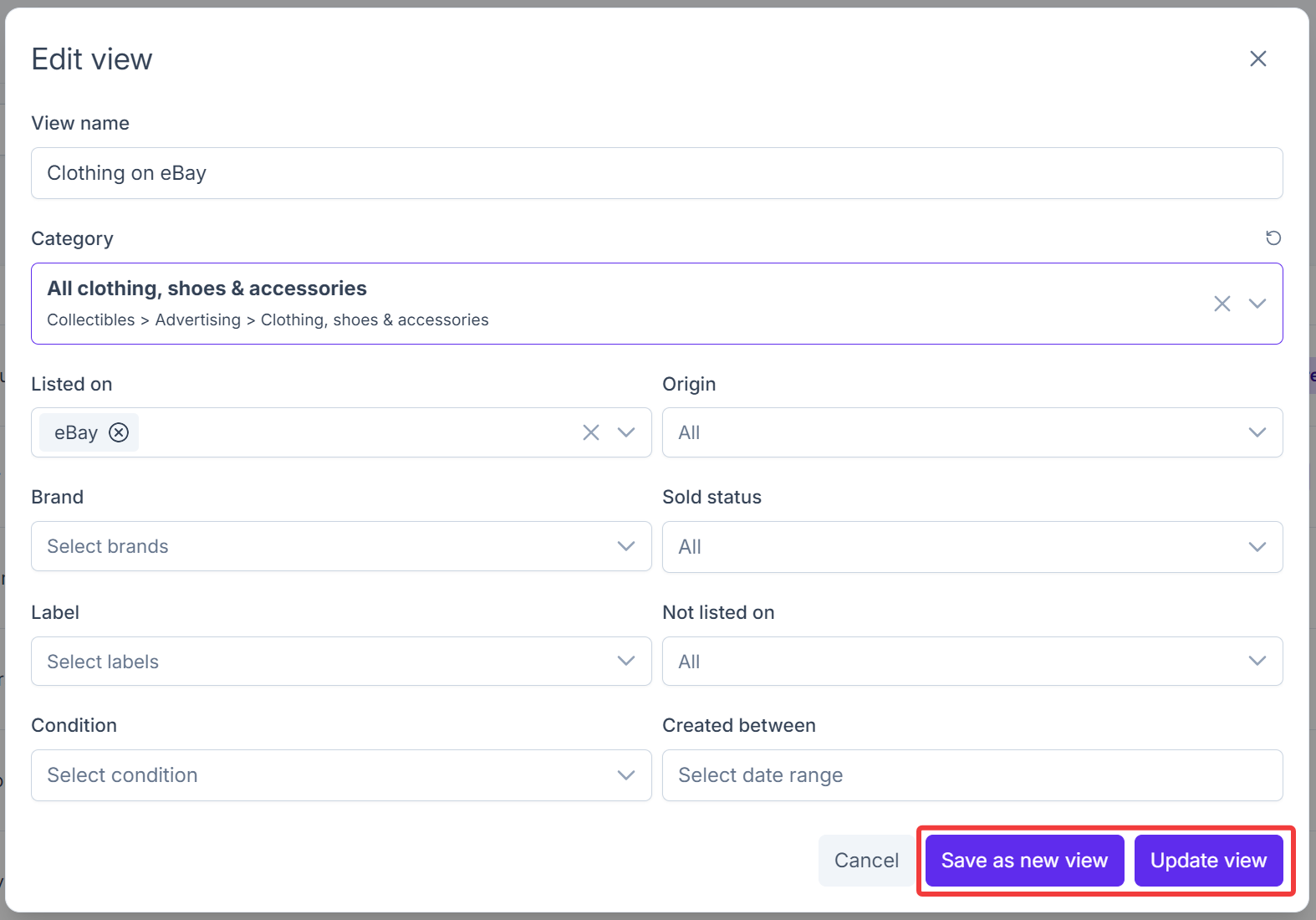
Edit a view
Click More next to your views. On mobile, tap Show listings.
Click the three dots next to the view.
Click Edit.

Change the name, filters, or custom rules.
Choose how to save:
- Update view saves your changes to this view.
- Save as new view creates a new view and keeps the original unchanged.
Delete a view
- Click More next to your views. On mobile, tap Show listings.
- Click the three dots next to the view.
- Click Delete.
- Click Yes to confirm.
If the view was pinned, it's removed from your pinned views too.
Ideas for custom views
| View | Filters to use |
|---|---|
| eBay listings under 50 | Listed on: eBay, custom rule: Price is less than 50 |
| Not on Poshmark yet | Not listed on: Poshmark |
| Women's shoes on Poshmark and Whatnot | Category: Women's shoes, Listed on: Poshmark, Whatnot |
| All Nike items | Brand: Nike |
| Needs photos | Label: your "Needs photos" label |
| This month's new stock | Created between: first and last day of the month |
| Unsold Facebook items | Listed on: Facebook, Sold status: Unsold |
Customize your views
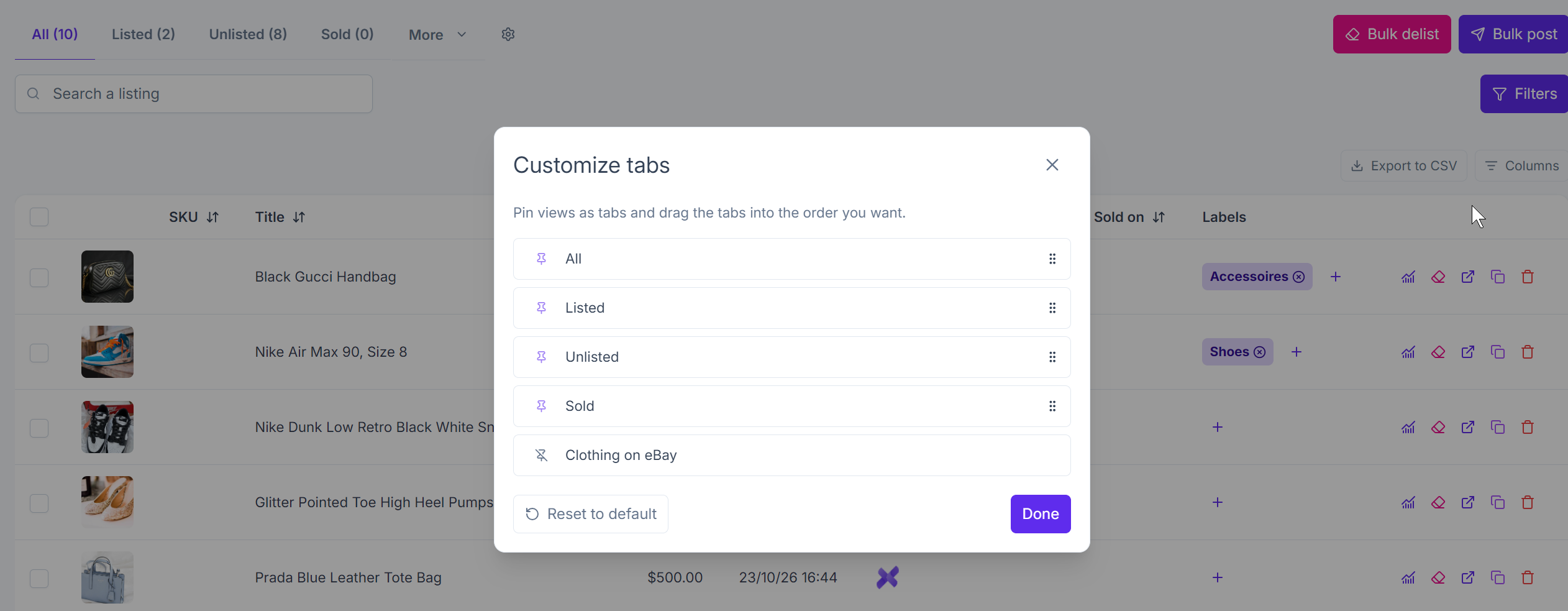
You can pin up to 2 custom views next to the 4 default views. That's 6 views in total.
- Click the gear icon next to your views.
- In Customize views, click the pin icon next to a view to pin or unpin it.
- Drag the views into the order you want.
- Click Done.
To go back to the default views, click Reset to default.
INFO
Before you use Bulk delist or Bulk post, check your view and filters so you act on the right listings.
FAQ
What's the difference between filters and views?
Filters are for quick, one-off searches and aren't saved. Views are saved. Default views come with every account, and custom views are filter sets you create yourself.
Where did Quick filters and Advanced filters go?
They're merged into one Filters button. The Quick filters fields are at the top of the dialog, and Advanced filters are now Custom rules at the bottom.
Where did the Origin and Listed on dropdowns go?
They moved into the Filters dialog.
Where are the views I saved before?
Your views are still there. You can find them under More next to your views. To keep one next to your default views, pin it with the gear icon. See Customize your views.
Can I save my filters?
Yes. In Filters, click Save as view. See Custom views.
How do I clear my filters?
Click the reset icon next to Filters or inside the Filters dialog. On mobile, tap Clear filters.
Why does a listing show in both Listed and Sold?
A listing with more than one item can be sold and still live at the same time. For example, if you sell 1 of 3 and the other 2 are still listed, it shows in both views.
Why did my custom view disappear from the top of the page?
A custom view only shows next to your default views while you have it open. To keep it there, pin it with the gear icon. See Customize your views.
Can I remove the All, Listed, Unlisted, or Sold view?
No. The 4 default views always stay, but you can reorder them.
How many custom views can I create?
As many as you want. You can pin up to 2 of them next to your default views.
Does a view update when I add new listings?
Yes. A view saves your filters, not a fixed list of items. Each time you open it, it shows all listings that match, including new ones.
Will my views show on my other devices?
Yes. Your custom views, pinned views, and view order are saved to your Crosslist account, so they show up wherever you log in.