

Appearance
Connecting Poshmark
Crosslist connects to Poshmark through the Crosslist Chrome extension on computer, or on mobile by logging in to your Poshmark account.
WARNING
On mobile, logging in to Poshmark with Google, Facebook or Apple is not supported. Log in with your email or username and password instead.
Don't have a password for Poshmark yet? Set one first:
- Log in to Poshmark the way you usually do and go to your Poshmark account info. Selling on Poshmark Canada? Go to your account info on poshmark.ca instead.
- Click Change next to Password and set a password.
- Return to the Crosslist app and log in to Poshmark with your email or username and new password.
Before you start
Before you can use Crosslist with Poshmark on a computer, you need the Crosslist Chrome extension. On mobile, you don't need it.
How to connect
- Go to Account > Marketplaces.
- Next to Poshmark, click Log in to your Poshmark account. The Poshmark login page opens in a new tab.
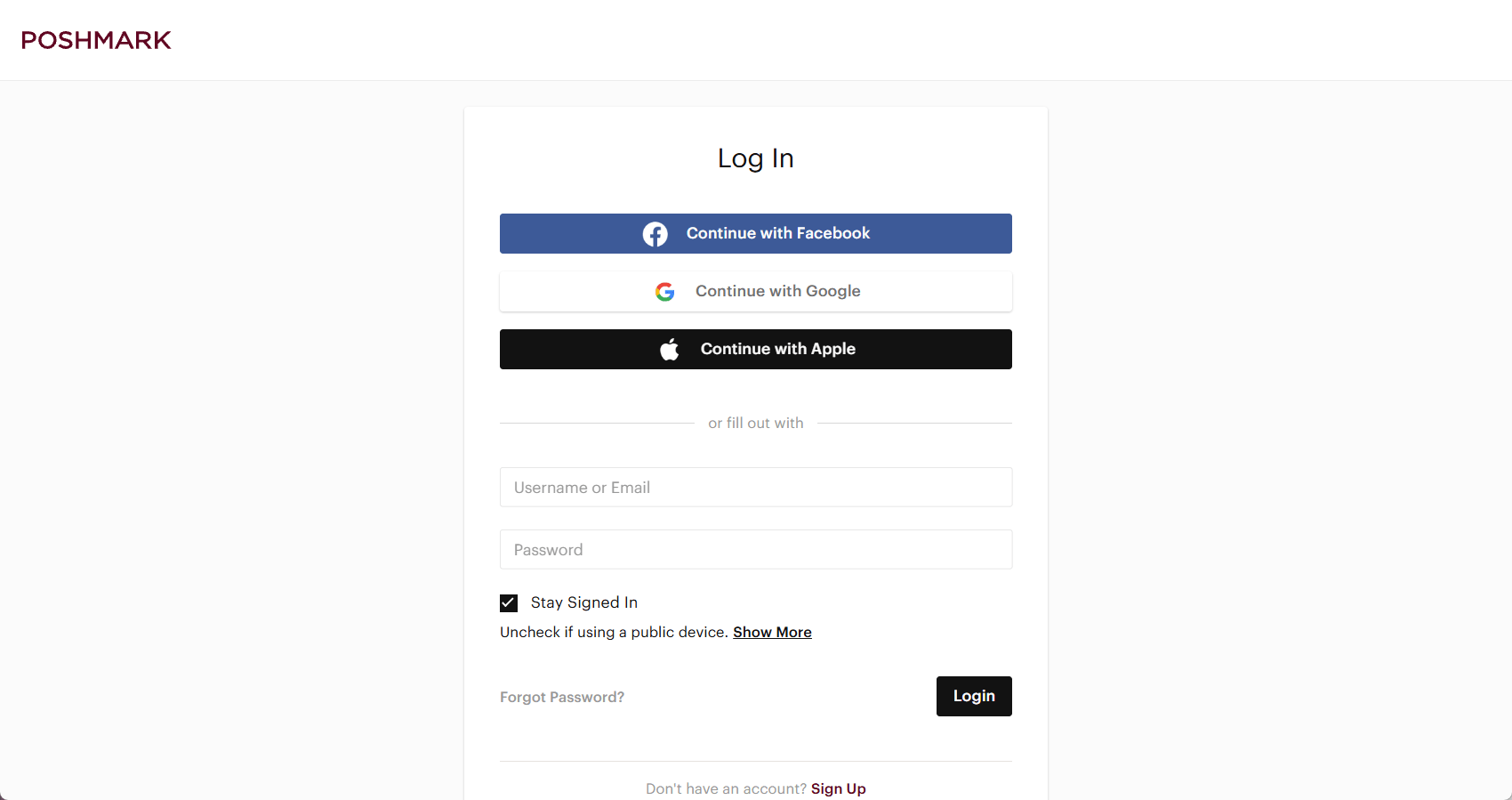
- Log in to Poshmark with Google, Apple, Facebook, or your email.
- After logging in, go back to Crosslist and click Recheck login. Your Poshmark account is now connected.
Common issues and fixes
INFO
Selling on Poshmark Canada? The Poshmark links on this page go to poshmark.com. Use the same pages on poshmark.ca instead.
Crosslist says my country isn't set correctly
Set your country in your Crosslist user information and click Save. It must match your Poshmark site: the US for poshmark.com, Canada for poshmark.ca.
My listings disappear after posting
Poshmark removed them after they were posted, usually because of its relisting policy. See Why do my listings disappear after posting?