

Appearance
Inventory management
Crosslist makes it easy to manage your inventory directly from the dashboard, whether you're updating one listing at a time or making changes across many listings in bulk.
For each action below, you can choose to apply it to a single listing individually, or select multiple listings and apply it in bulk.
With bulk actions, you can quickly modify labels, clone listings, unlink listings from specific marketplaces, and removing listings.
Editing labels
Individually
There are two places you can edit labels for a single listing:
From the listing overview:
- Locate the listing in the listing overview table
- In the Labels column, click the + icon to add a label, or click × on an existing label chip to remove it
Changes are saved immediately. There's no extra save step.

From the listing detail page
- Open the listing's detail page
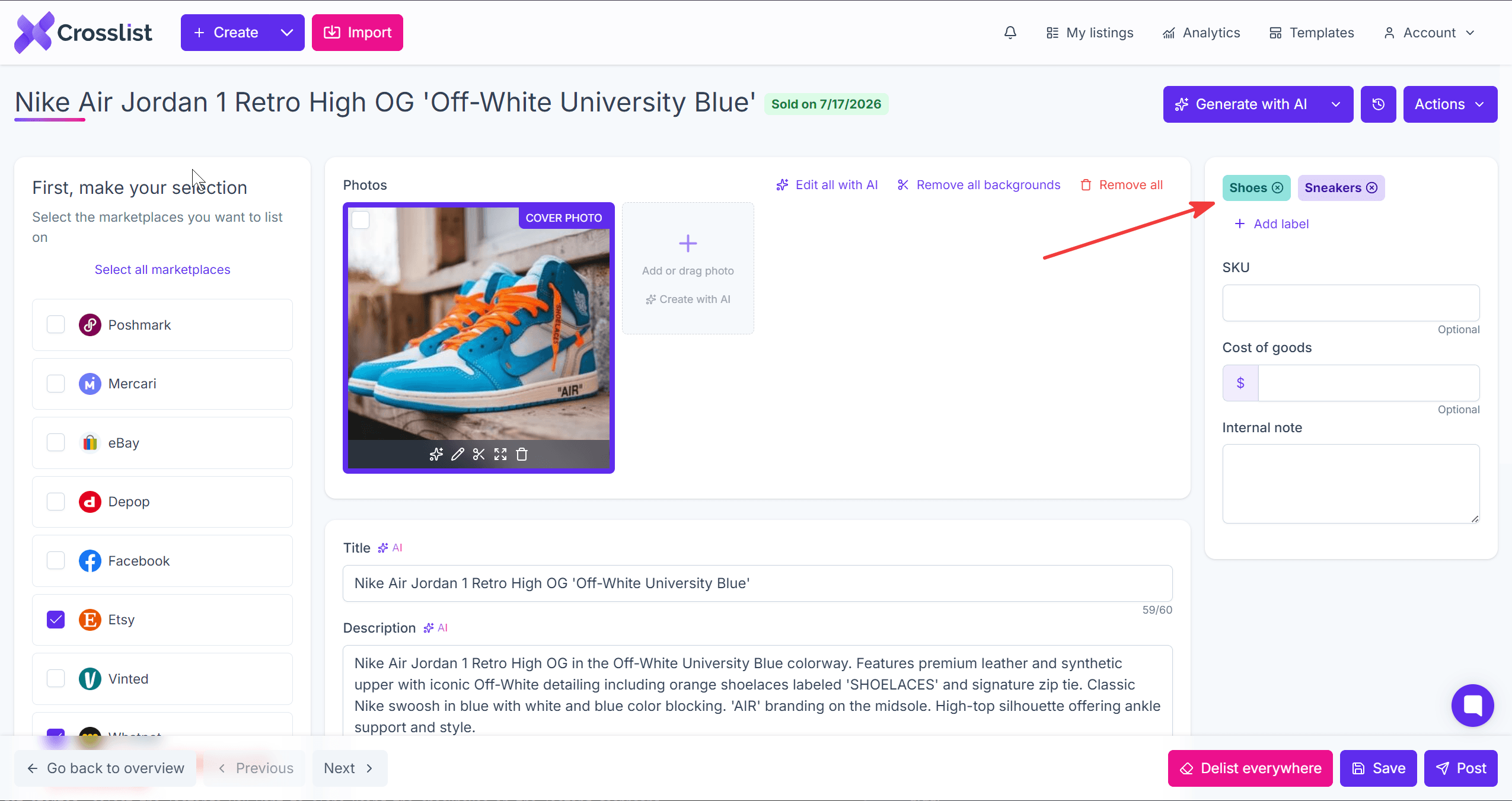
- In the panel on the right, find the labels area at the top
- To remove a label, click the × on its chip
- To add a label, click the + Add label and select an existing label or create a new one
- Click Save to apply your changes
In bulk
- Select the listings you want to modify using the checkboxes in the listing dashboard.
- Once selected, a Bulk actions dropdown will appear above the table.
- Open the dropdown and click Bulk edit labels. A pop-up will appear with two input fields:
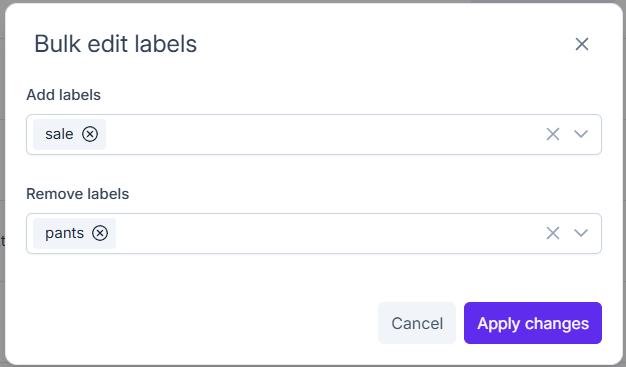
- Add labels: Enter labels you’d like to add to the selected listings. These will be added in addition to any existing labels. You can choose from your existing labels or create new ones.
- Remove labels: Enter labels you’d like to remove from the selected listings. Only labels already applied to the selected listings will be available here.
Finally, click Apply changes to update your listings with the new label settings.
Cloning listings
Individually
There are two places you can clone an individual listing:
From the listing overview
- Navigate to the listing listing overview
- Locate the listing you want to clone
- Click the copy icon next to the listing

From the listing detail page
- Open the listing's detail page
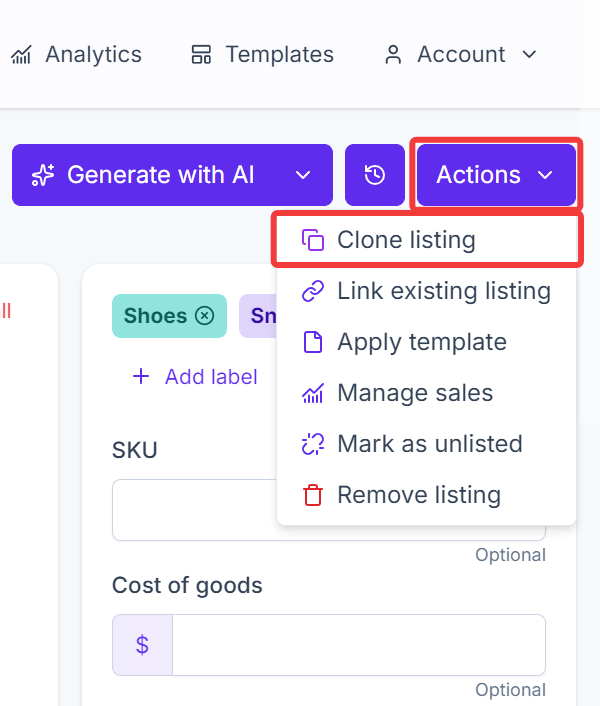
- Click the Actions dropdown in the upper right corner
- Select Clone listing
In bulk
- Select the listings you want to clone using the checkboxes in the listing dashboard.
- Once selected, a Bulk actions dropdown will appear above the table.
- Open the dropdown and click Clone X listing(s).
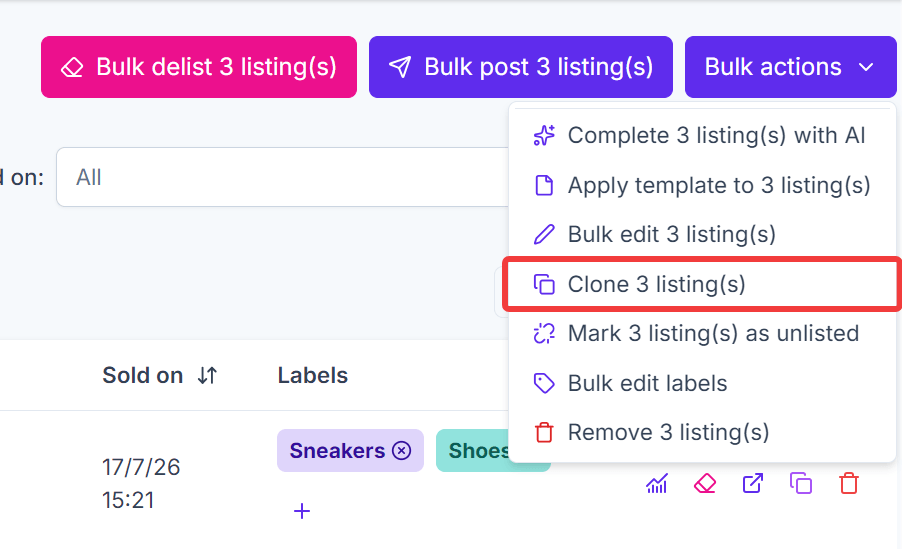
The cloned listings will then be created and added to the top of your inventory dashboard when sorting by creation date. Each copy will have [COPY] appended to the title so you can easily distinguish them from the originals.
Mark listings as unlisted
With this feature, you can unlink external listings from your Crosslist inventory. This is especially useful if you’ve already delisted items outside of Crosslist or if you’ve decided to close your account on a marketplace without delisting everything through Crosslist.
Individually
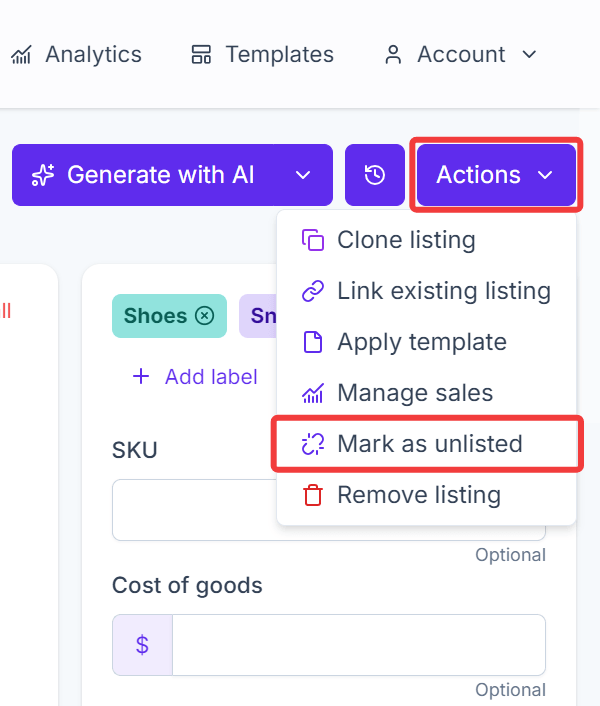
- Open the listing's detail page
- Click the Actions dropdown in the upper right corner
- Select Mark as unlisted
- Choose the marketplace(s) you want to unlink and confirm
In bulk
- Select the listings you want to modify using the checkboxes in the listing dashboard.
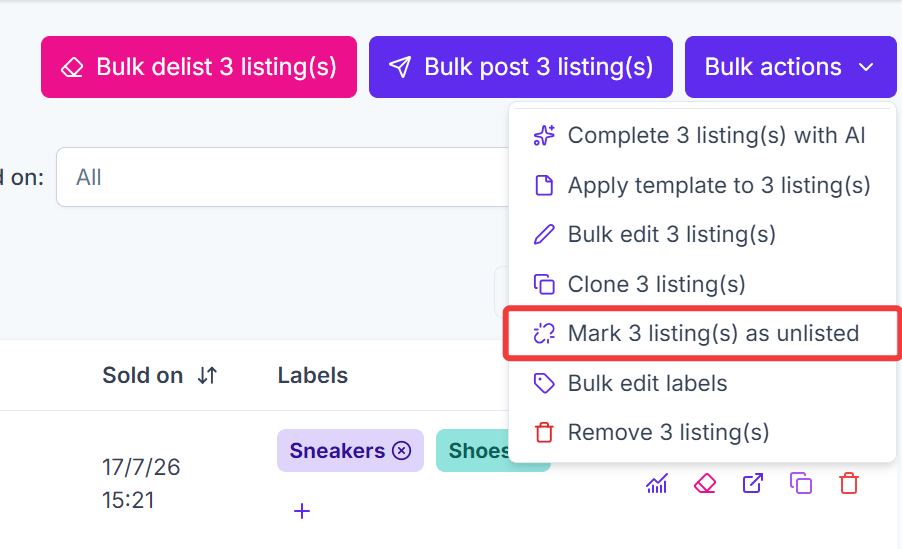
- Once selected, a Bulk actions dropdown will appear above the table.
- Open the dropdown and click Mark X listing(s) as unlisted.
A pop-up will appear where you can choose the marketplaces you want to unlink.
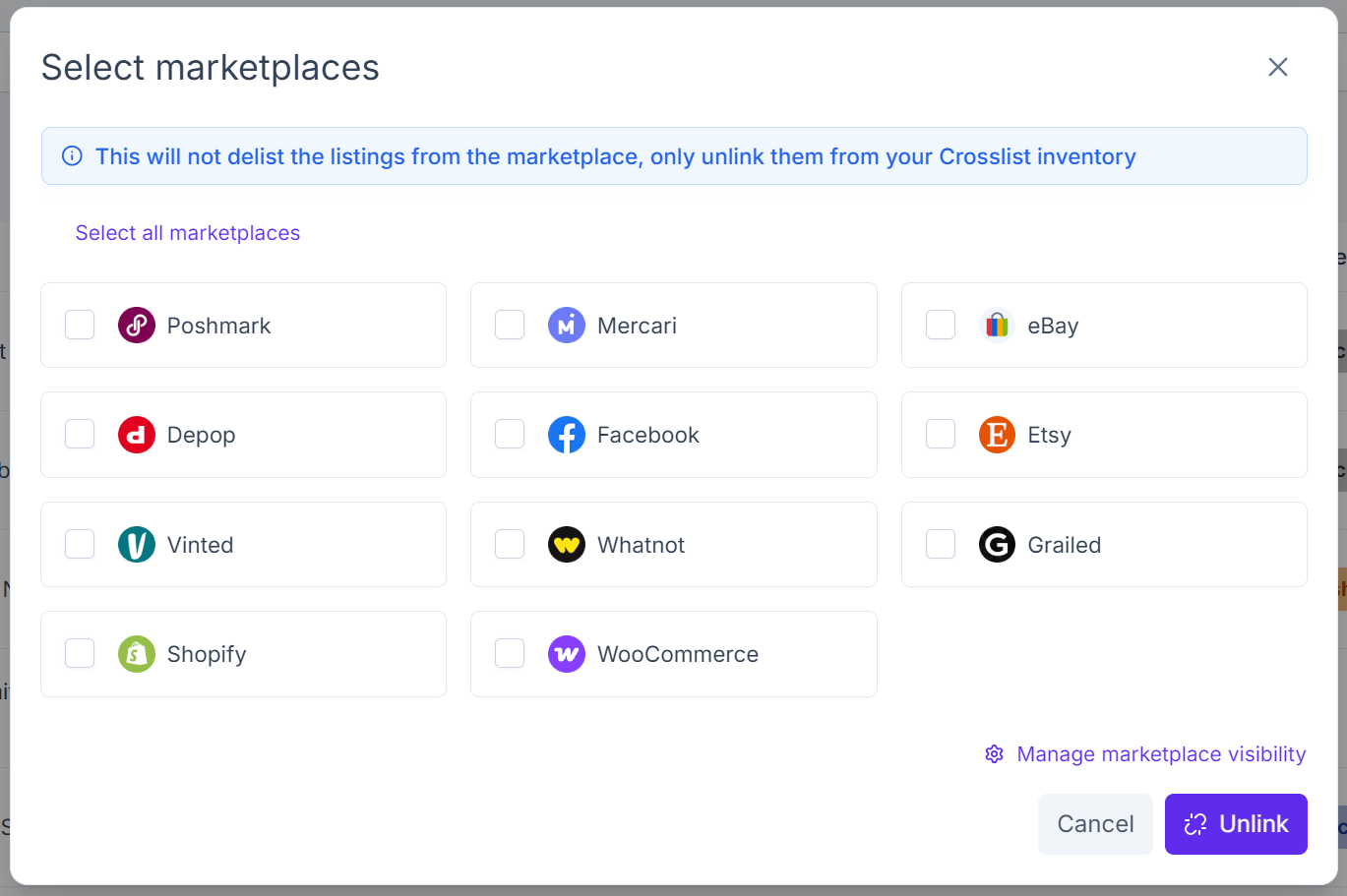
After confirmation, the listings will be unlinked and will no longer appear in the Listed on column.
WARNING
The listings are only unlinked from your Crosslist inventory. They will remain active on the marketplaces. If you want to delist your listings from connected marketplaces instead, check here.
Removing listings
Individually
There are two places you can remove a listing:
From the listing overview
- Navigate to the Crosslist listing overview
- Locate the listing you want to remove
- Click the trash icon next to the listing and confirm the action

From the listing detail page
- Open the listing's detail page
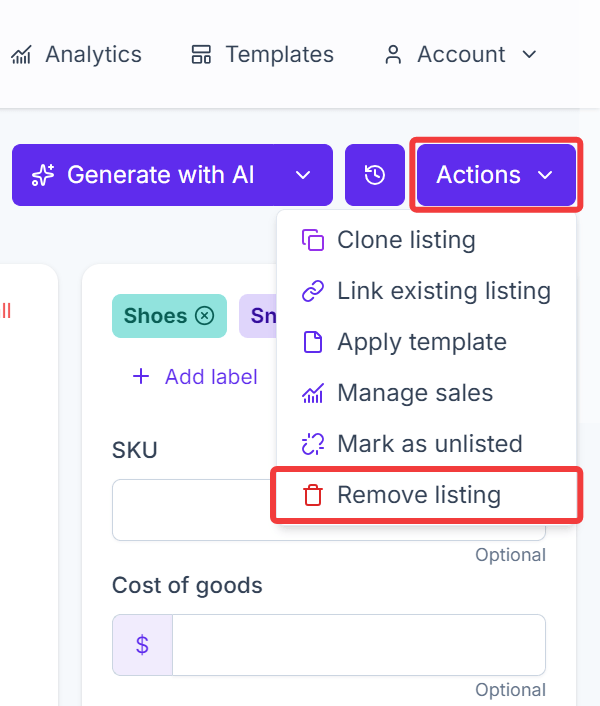
- Click the Actions dropdown in the upper right corner
- Select Remove listing and confirm the action
In bulk
- Select the listings you want to modify using the checkboxes in the listing dashboard.
- Once selected, a Bulk actions dropdown will appear above the table.
- Open the dropdown and click Remove X listing(s) and confirm the action.
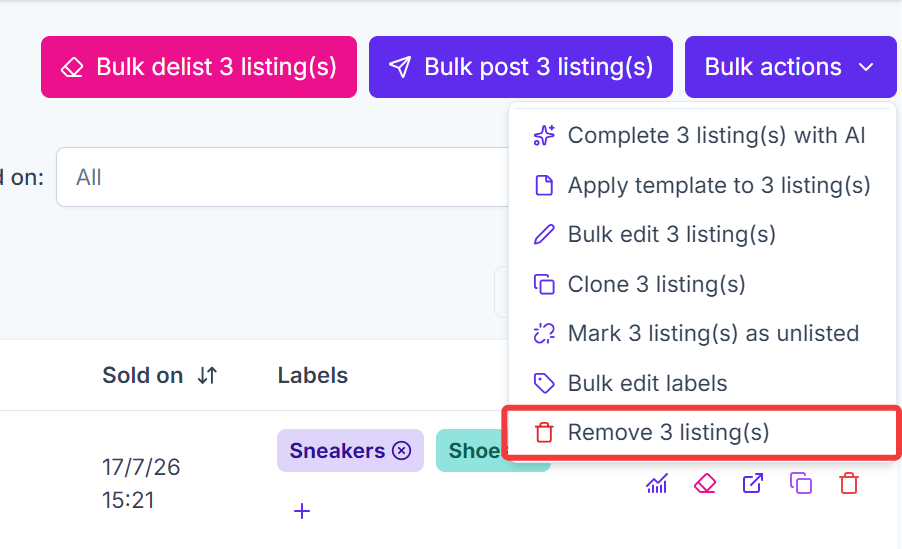
The deletion will then be executed. This action is irreversible.
WARNING
The listings are only removed from your Crosslist inventory. They will remain active on the marketplaces. If you want to delist your listings from connected marketplaces instead, check here.