

Appearance
Connecting Depop
Crosslist connects to Depop through Depop's official API. You log in to Depop once and authorize Crosslist. No Chrome extension needed.
Before you start
Depop only accepts listings from accounts that have finished their seller setup.
If your account is new, or you've never listed on Depop before, the best way to complete it is to list one item manually first:
- Go to create a listing on Depop. Use the same device you use Crosslist on.
- Fill in the required details, add a photo and publish.
- Complete every prompt Depop shows along the way, such as:
- setting up Depop Payments or linking PayPal, depending on your region
- adding a payment method
- adding your shipping address
How to connect
- Go to Account > Marketplaces.
- Next to Depop, click Connect your Depop account.
- Log in to Depop with Google, Apple or your email (Magic Link).
- You should now see the Depop authorization screen.
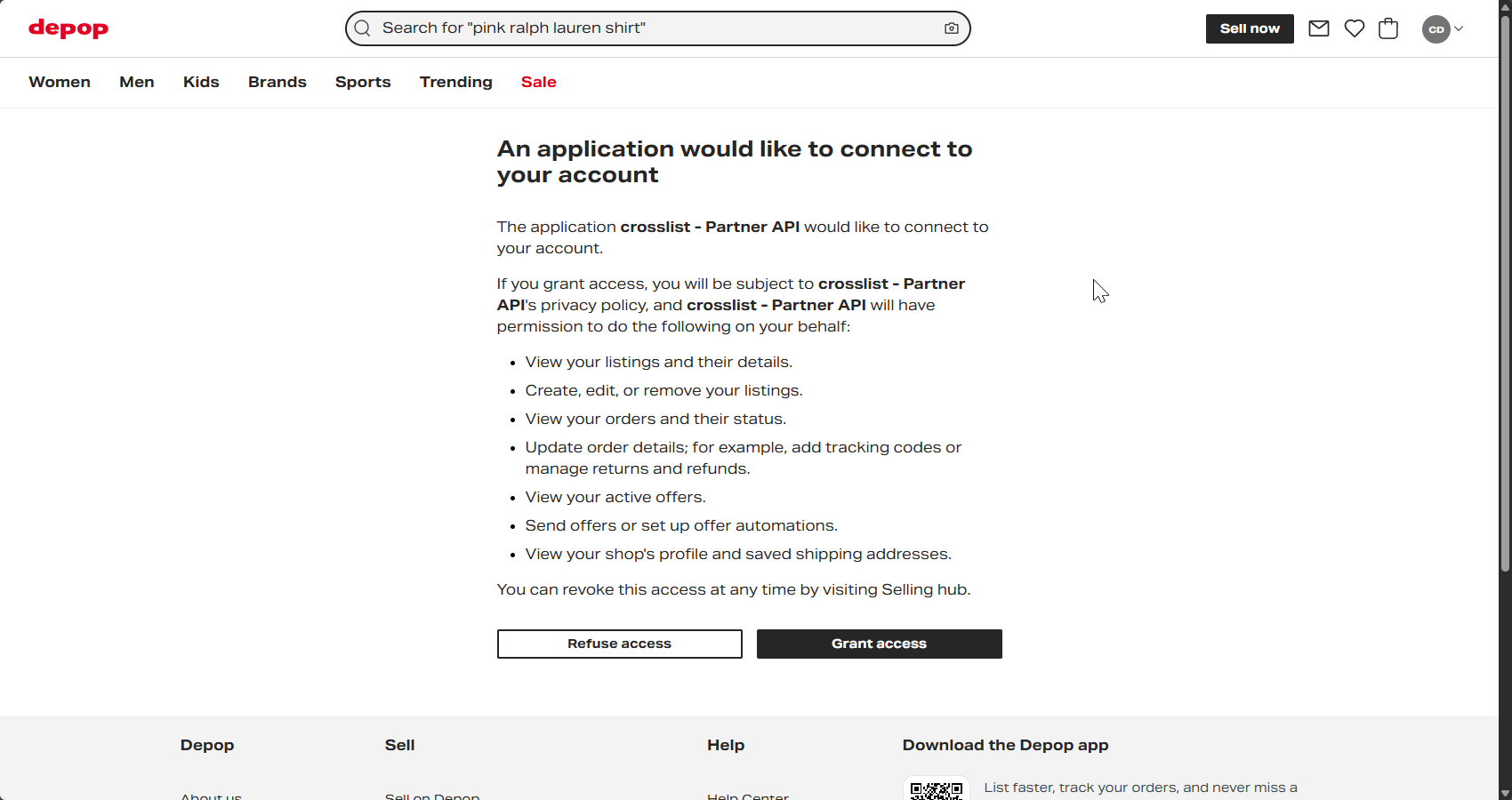
- Click Grant access. Your Depop account is now connected and you will be redirected to Crosslist automatically.
Common issues and fixes
Email login (Magic Link) doesn't work on mobile
When you log in with your email, Depop sends you a Magic Link.
Some email apps open that link in their own built-in browser instead of the browser Crosslist opened, so the connection can't complete.
First, make sure your default browser isn't in private mode:
- Safari: open the tabs overview and switch from Private to your regular tabs.
- Chrome: open the tab switcher and switch from Incognito to your regular tabs.
Then:
- In the Crosslist app, start connecting Depop. Crosslist opens the Depop login page in your default browser.
- Choose Magic Link and enter your email address. Depop shows a Check your inbox page.
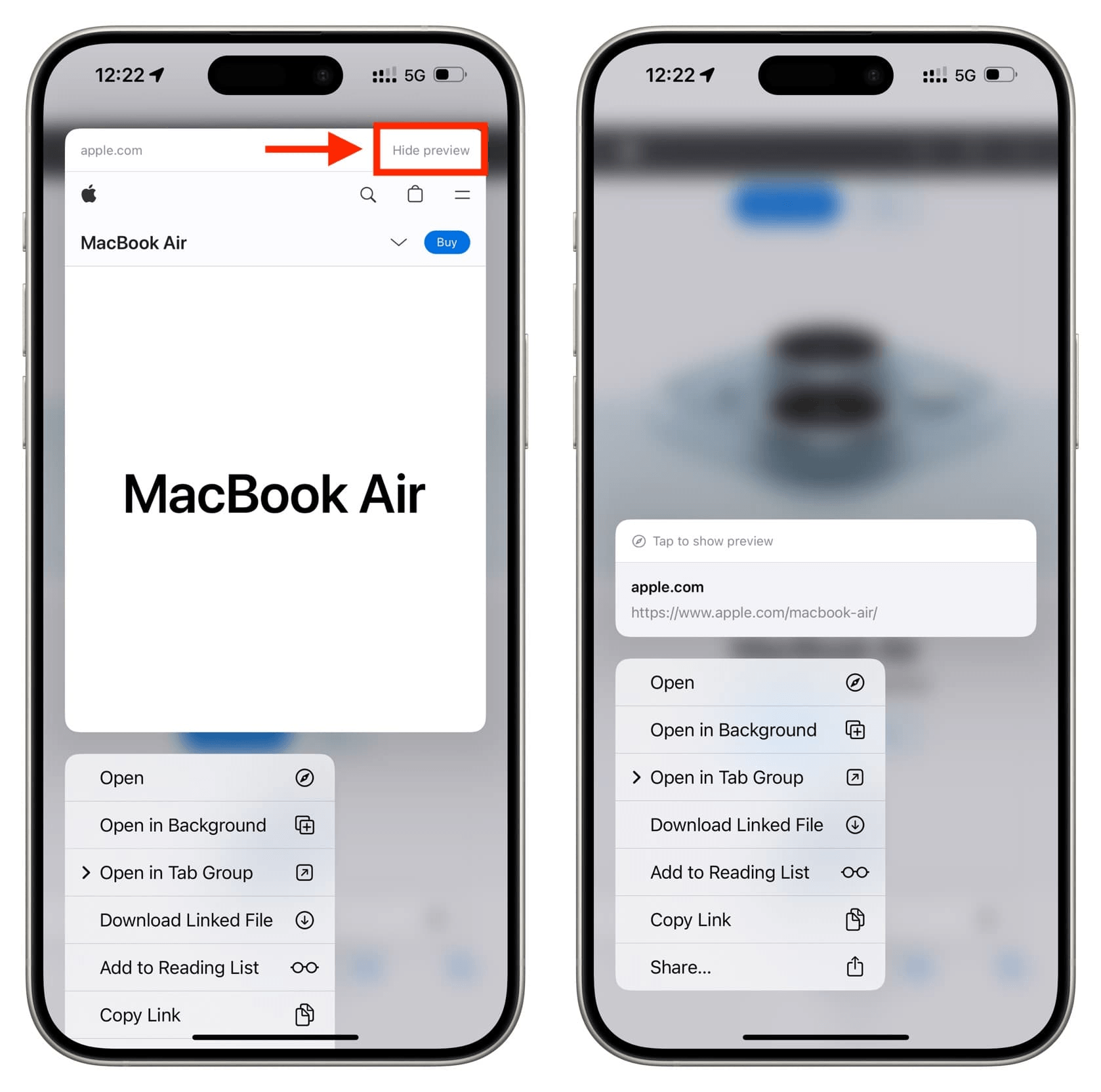
- Open the email from Depop. Don't tap Log in to Depop. Long-press it and copy the link instead:
- iPhone: tap Hide Preview first, then tap Copy Link.
- Android: tap Copy link address. The wording depends on your email app.
- Switch back to your default browser, where the Check your inbox page is still open.
- Paste the link into the address bar and tap Go.
- Tap Authorize. You're sent back to Crosslist, and Depop is connected.
WARNING
On iPhone, hide the link preview before copying. If the preview stays on, iOS opens the link automatically and it can expire before you use it.
INFO
Already tapped the link or opened its preview? Request a new Magic Link and follow the steps again.
Depop asks for payment setup
List one item manually on Depop, using the same device you use Crosslist on.
Complete the payment prompt Depop shows, then post through Crosslist again.
Depop says my shipping address is missing
Add your address to Depop as follows:
Go to create a listing on Depop.
In the Shipping section, add your shipping address.
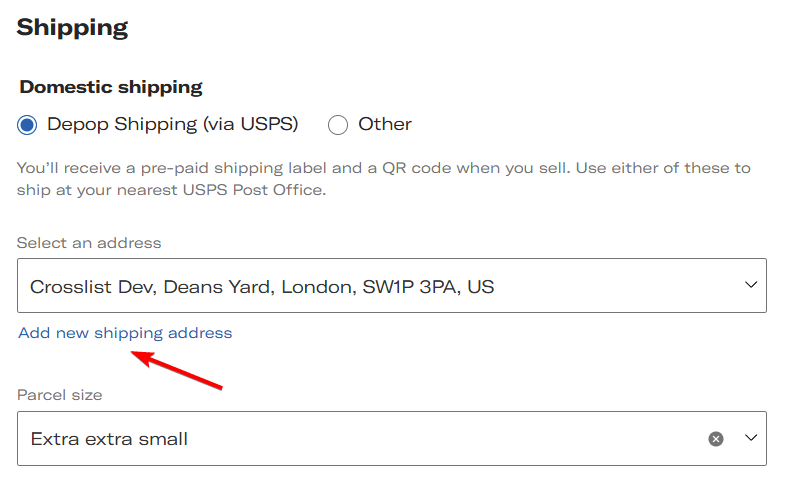
Depop saves the address for all future listings.
Depop says my saved addresses need updating
- Go to create a listing on Depop.
- In the Shipping section, delete all saved addresses, then add a new one.
Depop won't let me ship items myself
Depop limits new accounts to its own shipping labels.
Switch to Use Depop label in your Crosslist shipping profile for Depop.