

Appearance
AI bulk create
Crosslist can automatically turn a batch of photos into multiple separate listings using AI, saving you from creating each listing one by one.
INFO
To use this feature, you need the AI add-on.
How it works
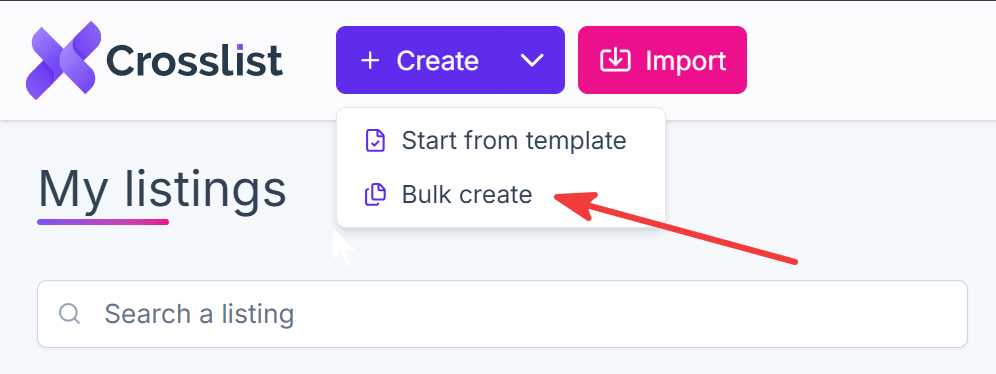
- Click the arrow next to the Create button and select Bulk create.
- Upload your photos.
- Click Generate listings.
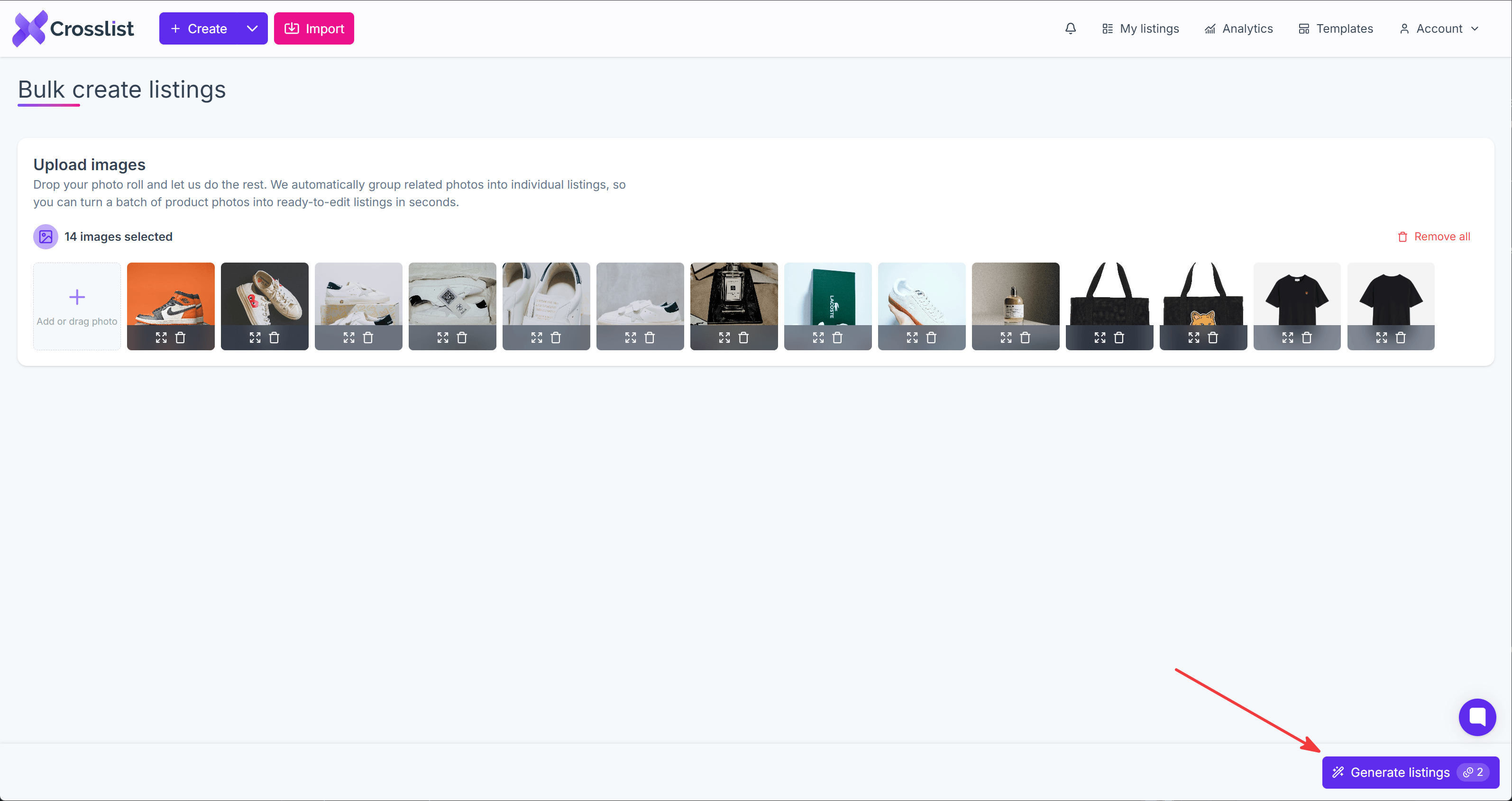
Crosslist will upload your photos and automatically group them into separate listings based on what it detects in each one.
Reviewing and adjusting your listings
Once your photos are grouped, you'll land on the Review listings screen, where you can edit each listing before adding it to your inventory.
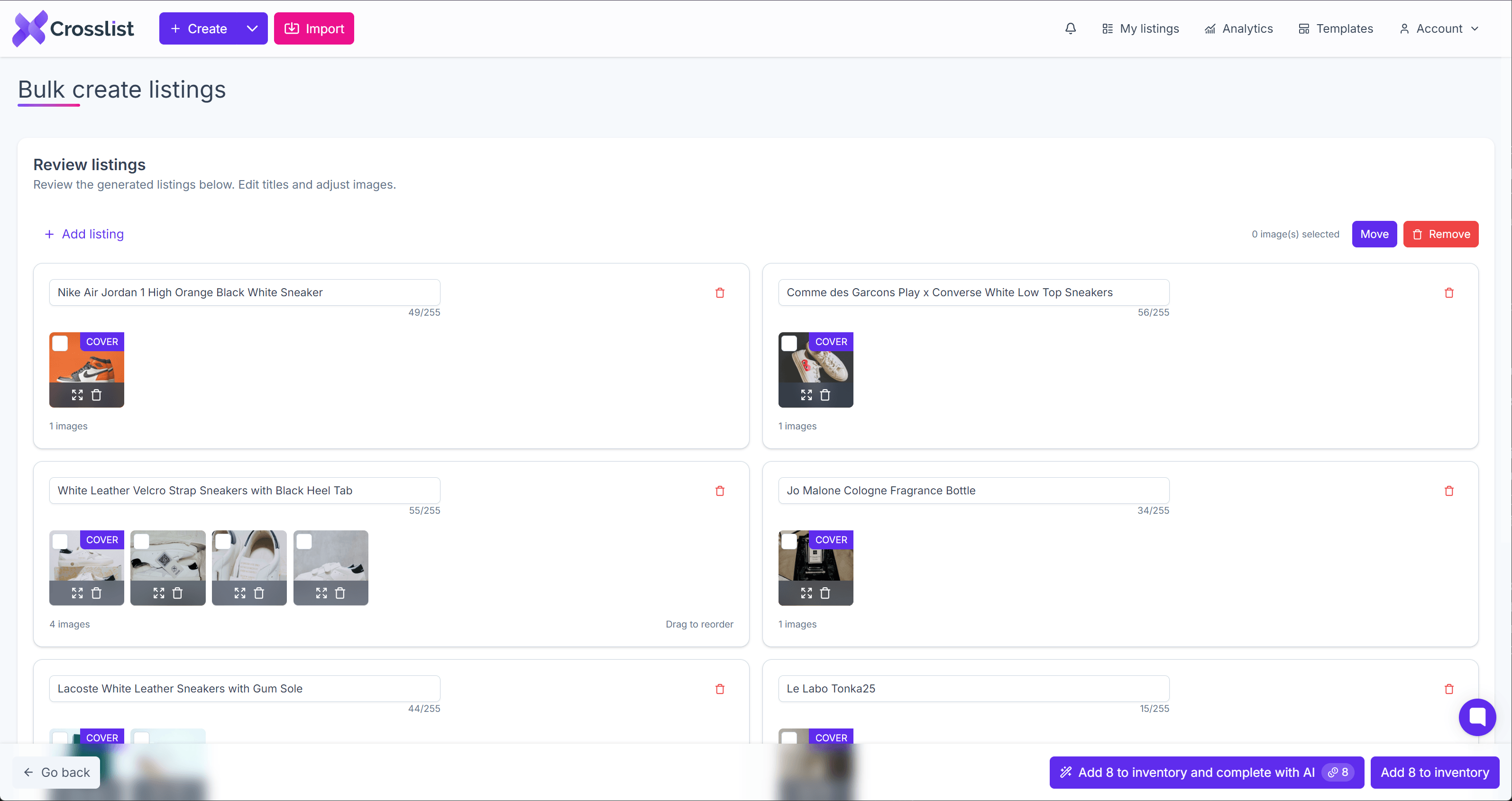
- Edit the title directly in the text field for each listing
- Use Move or Remove to relocate or delete the selected images across listings, or simply drag a photo from one listing to another to move it directly
- Click Add listing to create an additional empty listing if needed
INFO
If a listing has more than one image, you can drag the images within that listing to reorder them. The first image is used as the cover photo.
Adding your listings to inventory
Once you're happy with your listings, choose one of two options at the bottom of the screen:
- Add X to inventory: adds the listings to your inventory as they are, with just the images and title filled in
- Add X to inventory and complete with AI: generates full listing details using AI, then adds the listings to your inventory
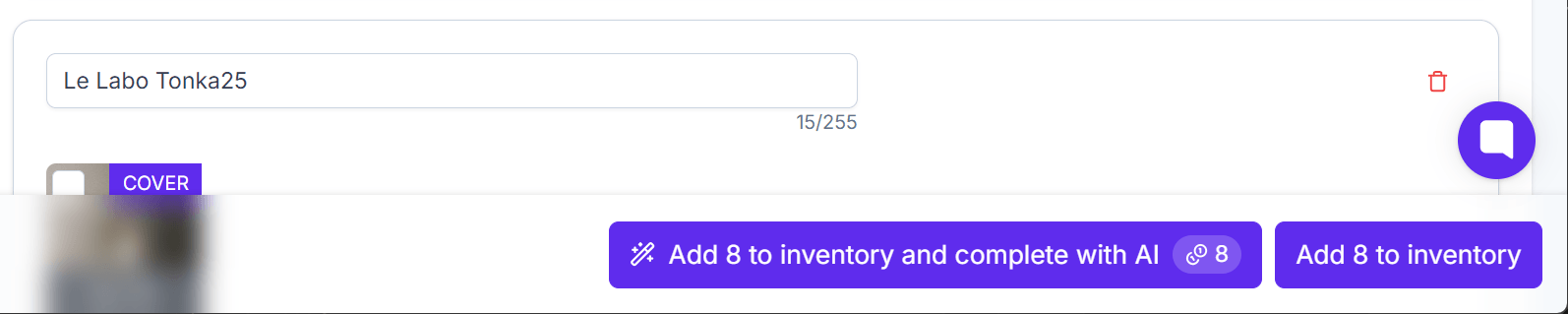
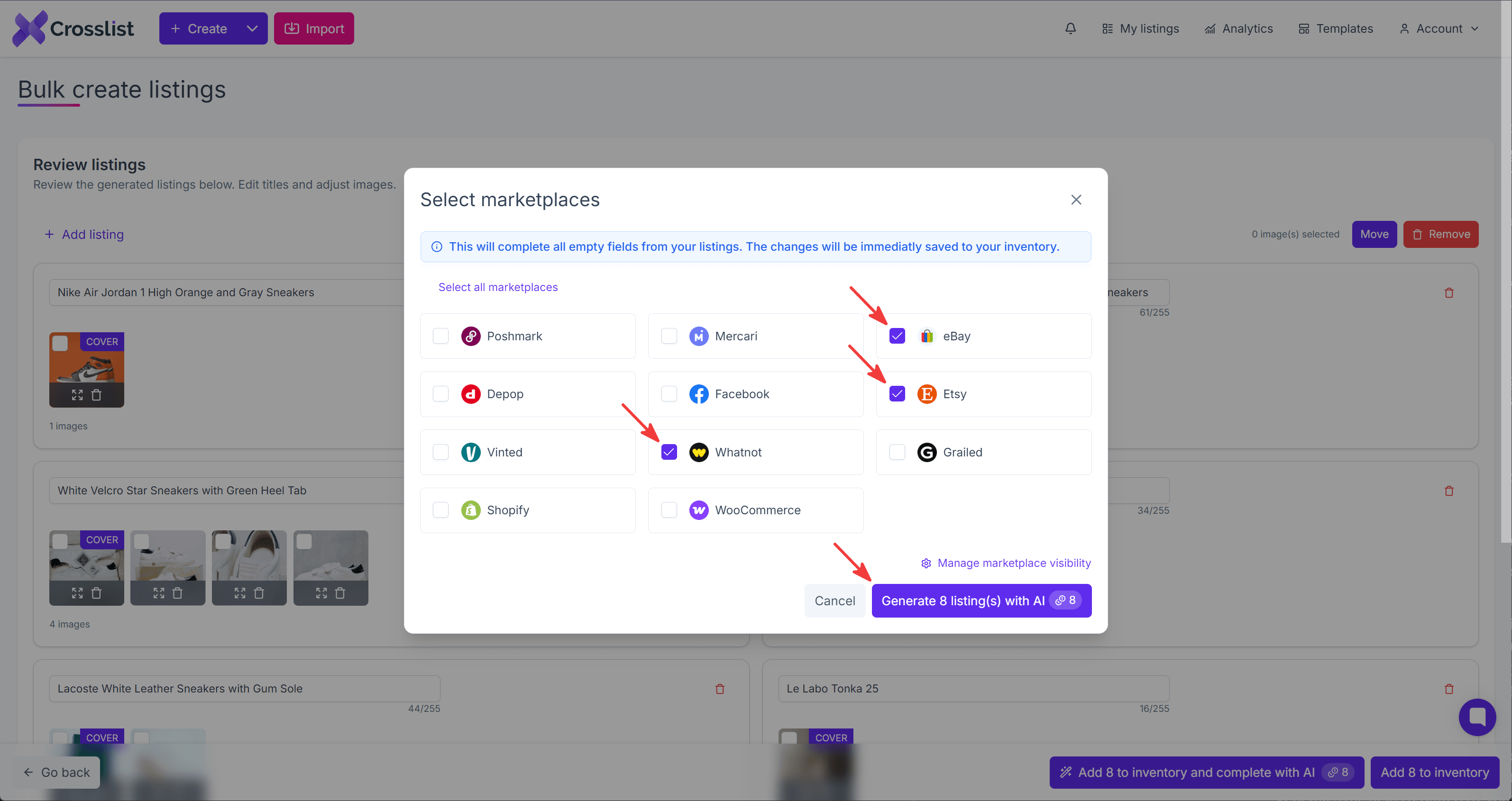
If you choose to complete with AI, you'll first be asked to select the marketplaces you want to post to, since Crosslist only generates the fields required by your selected marketplaces.
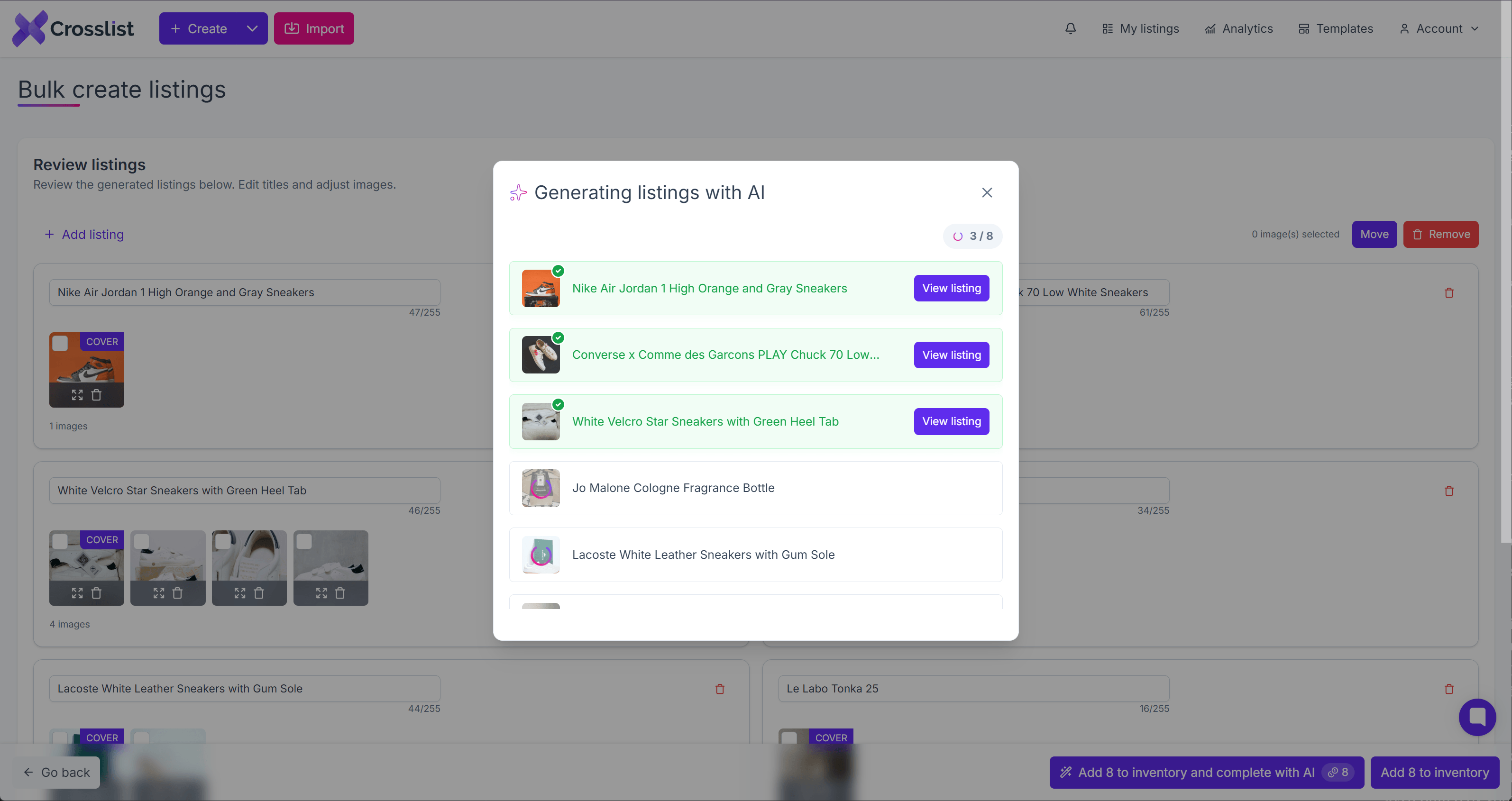
Crosslist will then generate the full details for each listing before adding it to your inventory.
INFO
Both steps use AI credits: 1 credit for every 10 images you upload to group them into listings, and 1 additional credit per listing if you choose to complete with AI.