

Appearance
AI-generated or edited listing photos
Crosslist lets you generate or edit your listing photos with a state-of-the-art AI algorithm.
The AI can generate new photos from a prompt or edit existing ones. You can also upload reference images to guide the generation or editing process.
INFO
To use this feature, you need the AI add-on.
Generate new photos from scratch
To generate photos using AI, follow these steps:
Open an existing product listing detail page or create a new listing.
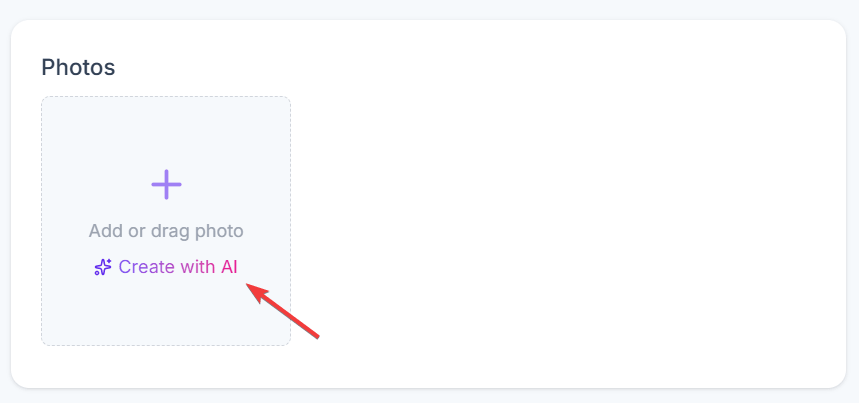
Click Create with AI in the photos card (below the plus icon).
A new screen will open that looks like this:
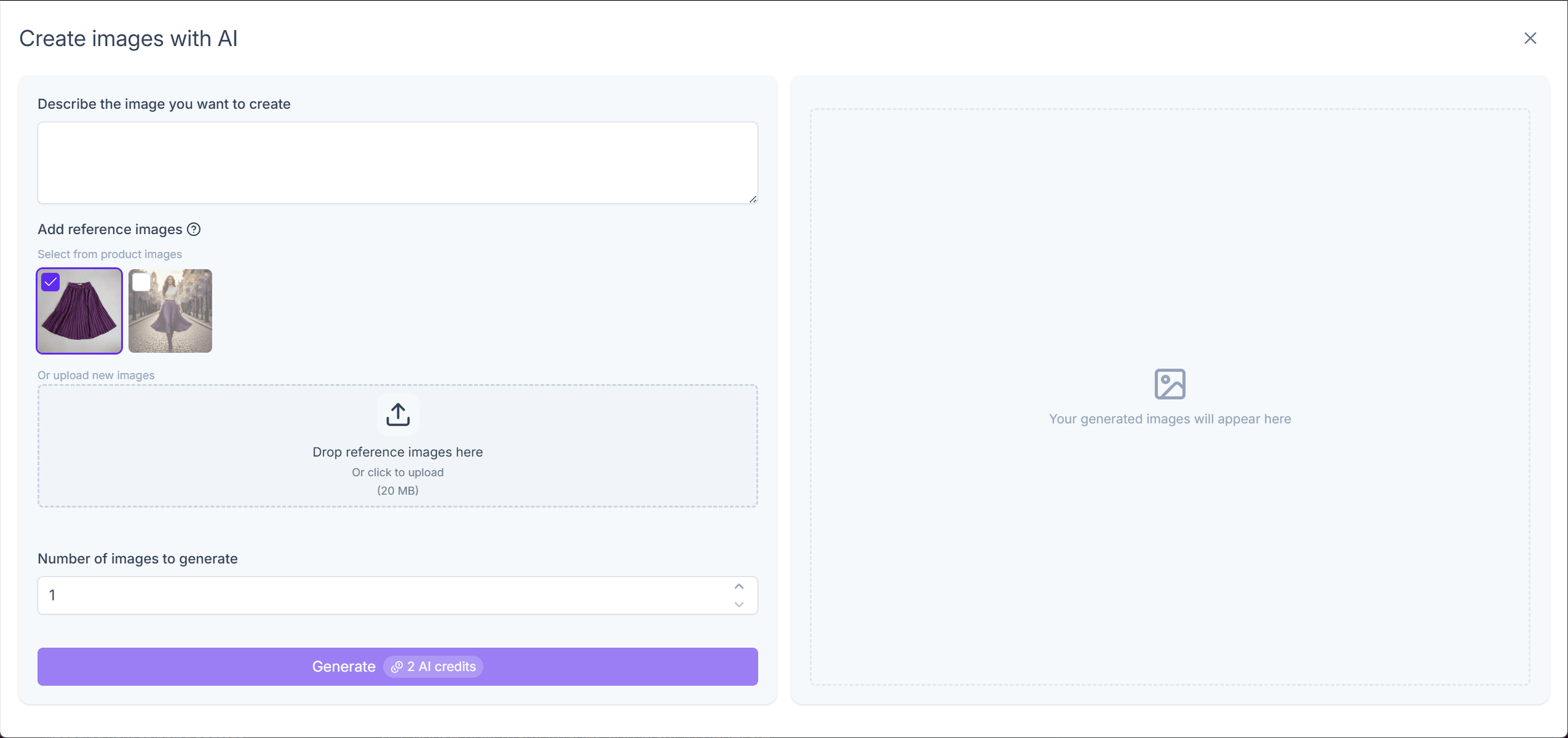
Enter a prompt with detailed instructions for the photo(s) you want to generate. The more specific your description is, the better the results will be.
Optional: upload one or more reference images, such as a watermark you want to add to the photos. You can also use the existing listing images as references by selecting them with the checkboxes.
Choose how many images you want to generate.
Click the Generate button.
Once the generation is complete, the photos will appear on the right side of the screen. You can repeat this process until you are satisfied with the output photos.
Select the photos you want to add to your listing using the checkboxes. Any unselected photos will be discarded.
Click the Add x photo(s) to listing button.
INFO
Each generated photo will consume 2 AI credits. You can track your usage using the counter under Account.
Edit existing photos
To edit your photos with AI, follow these steps:
Open an existing product listing page, or create a new listing.
Upload your listing photos if you have not already done so.
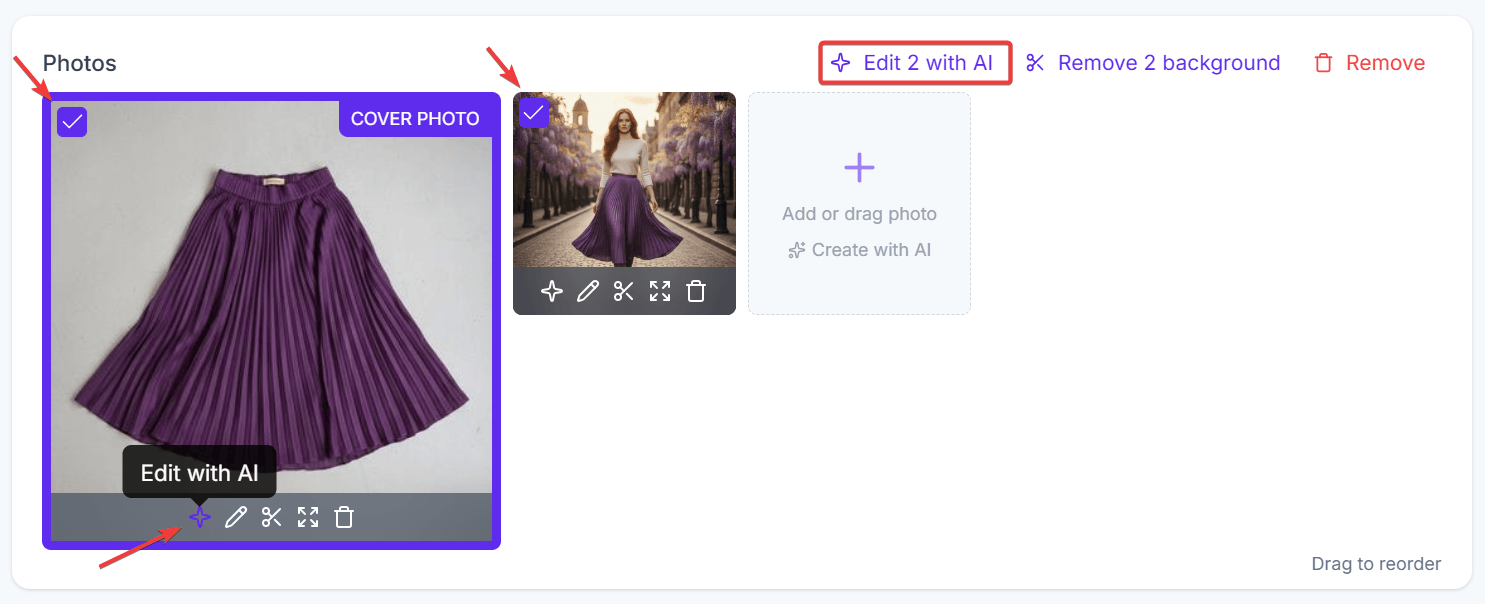
Click the stars icon below an image. To edit multiple images, select them with the checkboxes, then click Edit x with AI.
A new screen will open that looks like this:
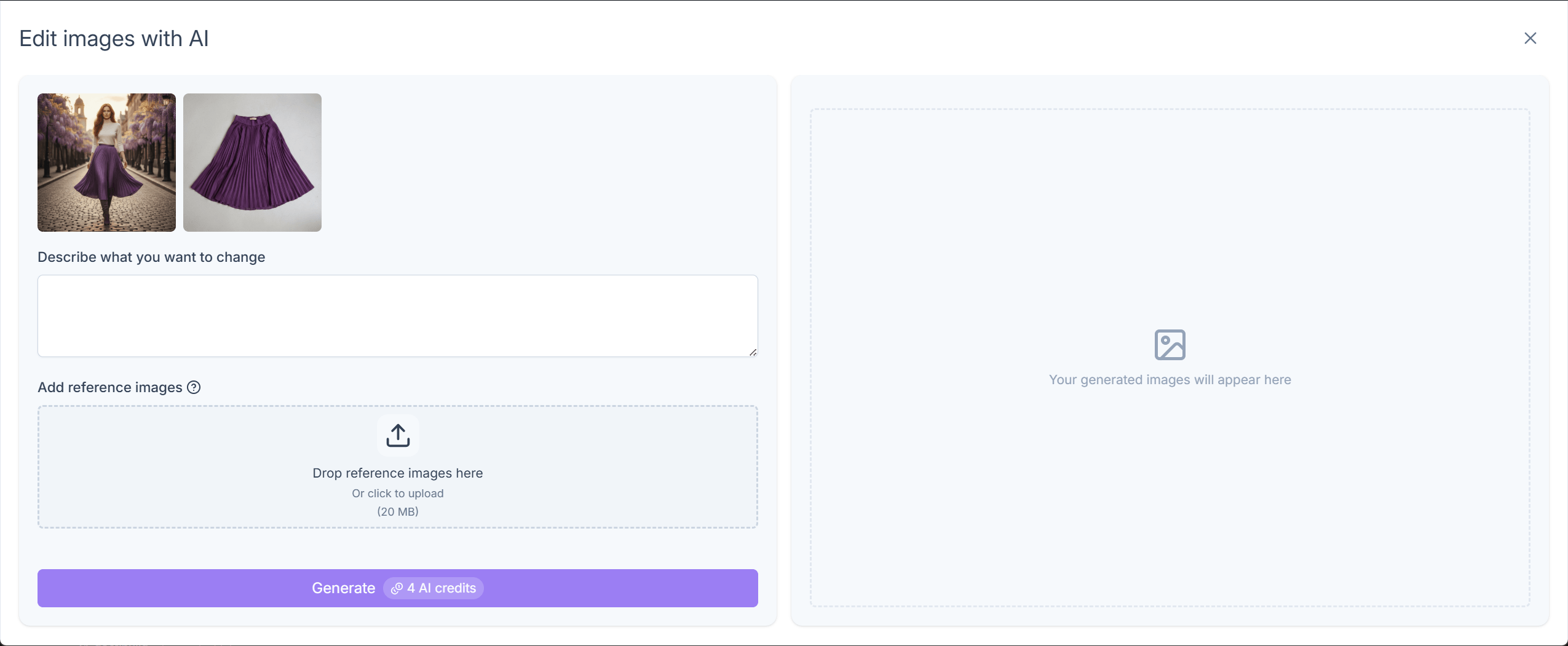
Enter a prompt with detailed instructions describing what you want to change. The more specific your prompt is, the better the results will be.
Optional: upload one or more reference images, such as a watermark you want to add to the photos. You can also use the other existing listing images as references by selecting them with the checkboxes.
Click the Generate button.
When generation is complete, the edited photos will appear on the right side of the screen. You can repeat this process until you are satisfied with the output photos.
Select the photos you want to add to your listing using the checkboxes. Any unselected photos will be discarded.
Click the Add x photo(s) to listing button.
INFO
Each generated photo costs 2 AI credits. You can track your usage with the counter under Account.