

Appearance
Connecting Mercari
Crosslist connects to Mercari through the Crosslist Chrome extension on computer, or on mobile by logging in to your Mercari account.
WARNING
On mobile, logging in to Mercari with Google, Facebook or Apple is not supported. Log in with your email and password instead.
Don't have a password for Mercari yet? Set one first:
- Log in to Mercari the way you usually do and go to your Mercari security settings.
- Under Password, set a password. Don't use the Passkey option, that won't work with Crosslist.
- Return to the Crosslist app and log in to Mercari with your email and new password.
Before you start
Before you can use Crosslist with Mercari, you need to verify your email, phone number and address. Complete these in your Mercari verifications.
For some items or shipping options, Mercari also asks you to verify your identity with a government ID on the same page.
You also need a debit or credit card in your Mercari payment methods. Add it on a computer, not in the Mercari mobile app.
On a computer, you also need the Crosslist Chrome extension installed. On mobile, you don't need it.
How to connect
- Go to Account > Marketplaces.
- Next to Mercari, click Log in to your Mercari account. The Mercari login page opens in a new tab.
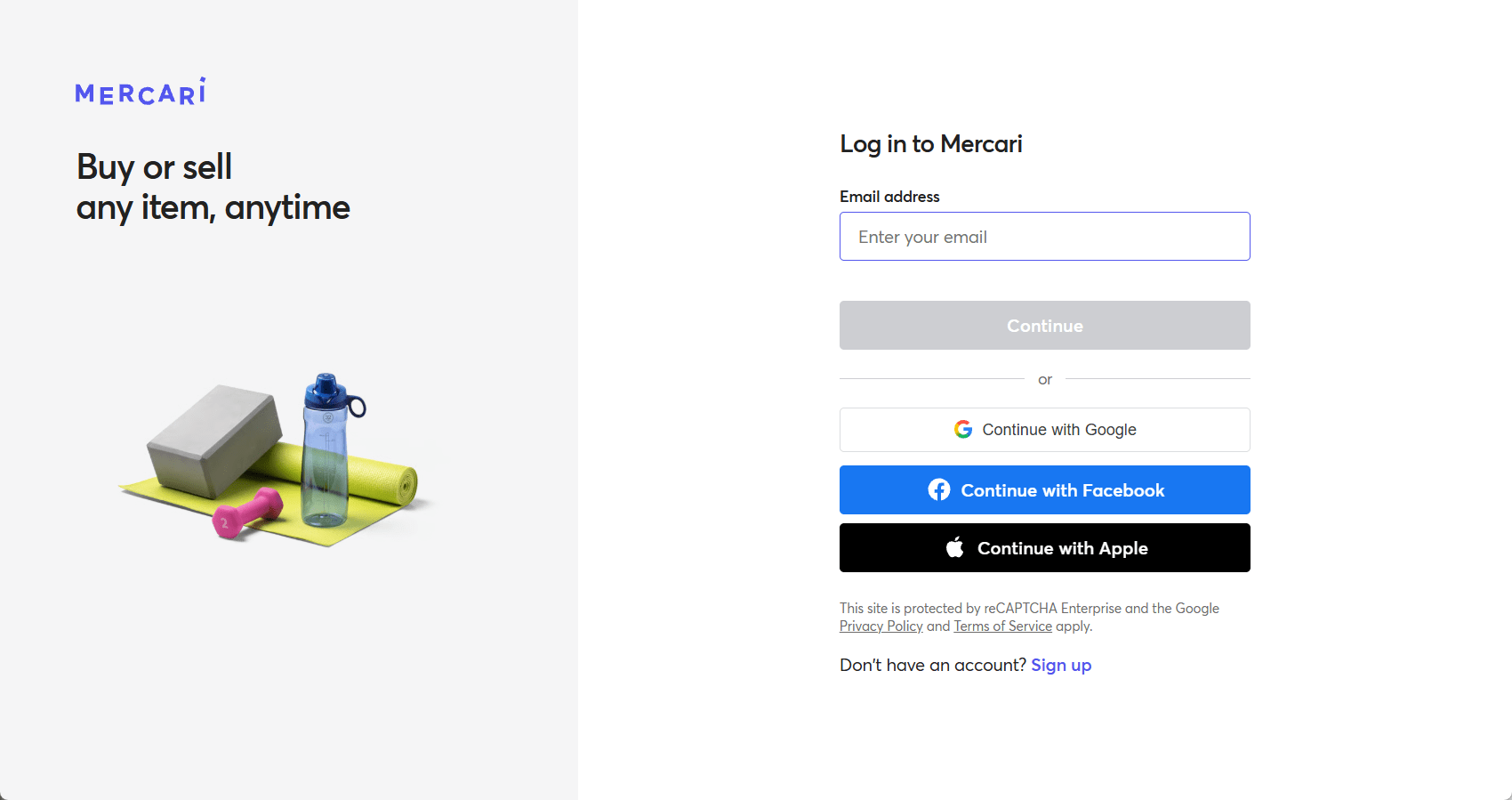
- Log in to Mercari with Google, Apple, Facebook, or your email.
- After logging in, go back to Crosslist and click Recheck login. Your Mercari account is now connected.
Common issues and fixes
Mercari asks me to verify my account
Mercari asks new sellers to verify their email, phone number and address before they can list. The message tells you which steps are missing.
Complete them in your Mercari verifications, then post again.
Mercari asks me to verify my identity
Sometimes, Mercari also requires identity verification with a government ID. Verify your identity in your Mercari verifications.
Mercari asks for a debit or credit card
Add a card in your Mercari payment methods. Do this on a computer, not in the Mercari mobile app.
Already have a card on Mercari and still see a card error?
Add a different card on a computer, then post again. If that doesn't help, contact Mercari support. Only Mercari can fix card issues on your account.
Listing works in the Mercari app, but not through Crosslist
Crosslist uses the same listing flow as Mercari's website. The Mercari mobile app uses a different flow, so a listing that works in the app can still fail on the website.
To fix it, create the listing manually at mercari.com/sell, on the same device you use Crosslist on. Mercari shows you the same error there, and usually what it needs to resolve it. Card issues are the most common cause, so try adding a different card first.
Once the listing works on the website, post through Crosslist again. Still stuck? Contact Mercari support.