
Appearance
Connecting your Depop account on mobile
To cross list to Depop via the mobile app, you first need to connect your Depop account to Crosslist.
Depop uses a magic link to log in, so the steps are a little different from other marketplaces.
- In the Crosslist app, tap the ☰ menu icon in the upper left corner
- Go to Marketplaces
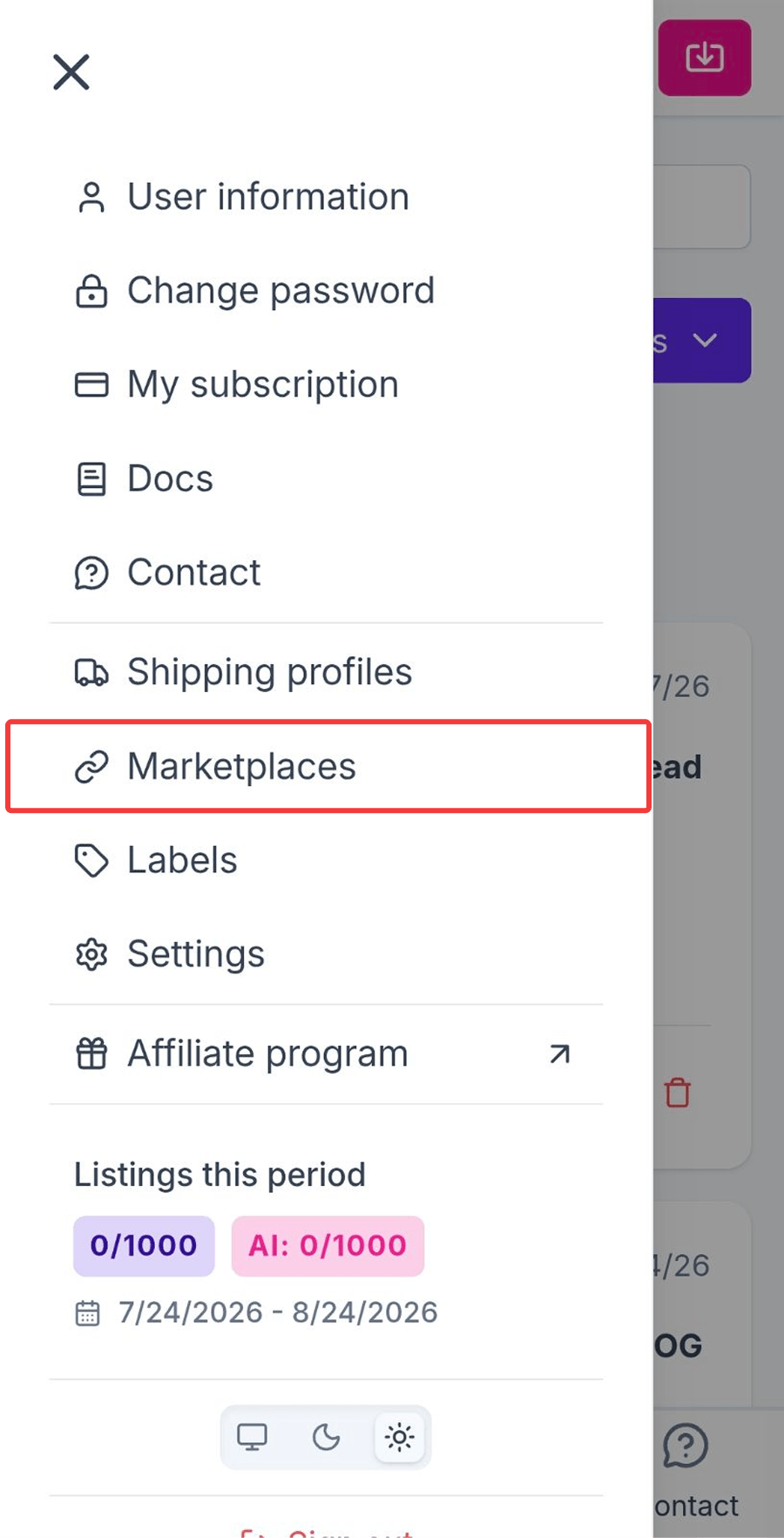
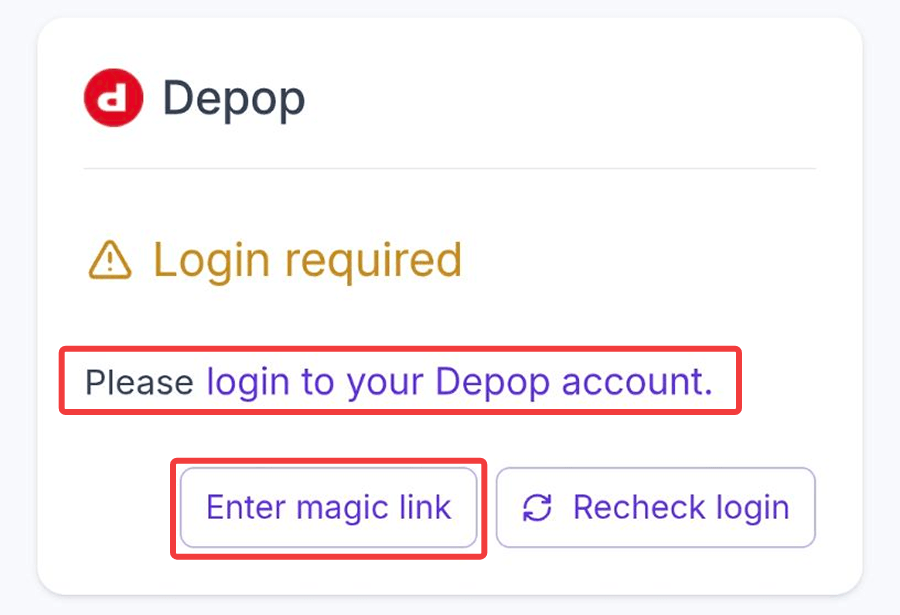
- Find Depop in the list and tap login to your Depop account or Enter magic link
A Depop login instructions pop-up will appear:
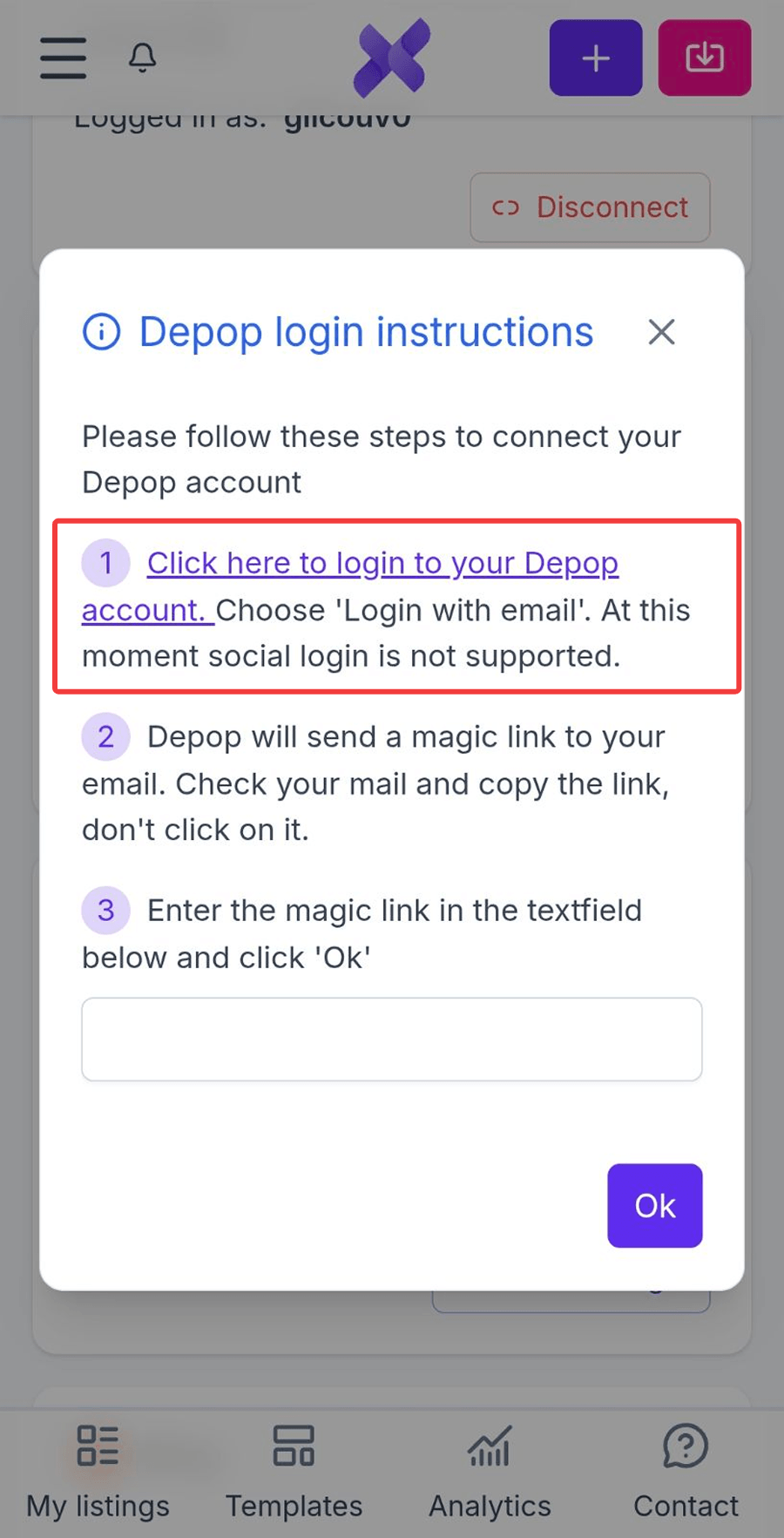
- Tap Click here to login to your Depop account
- If you're prompted to open the Depop app, decline and stay in the Crosslist app
- Tap Continue with email and log in with your Depop credentials
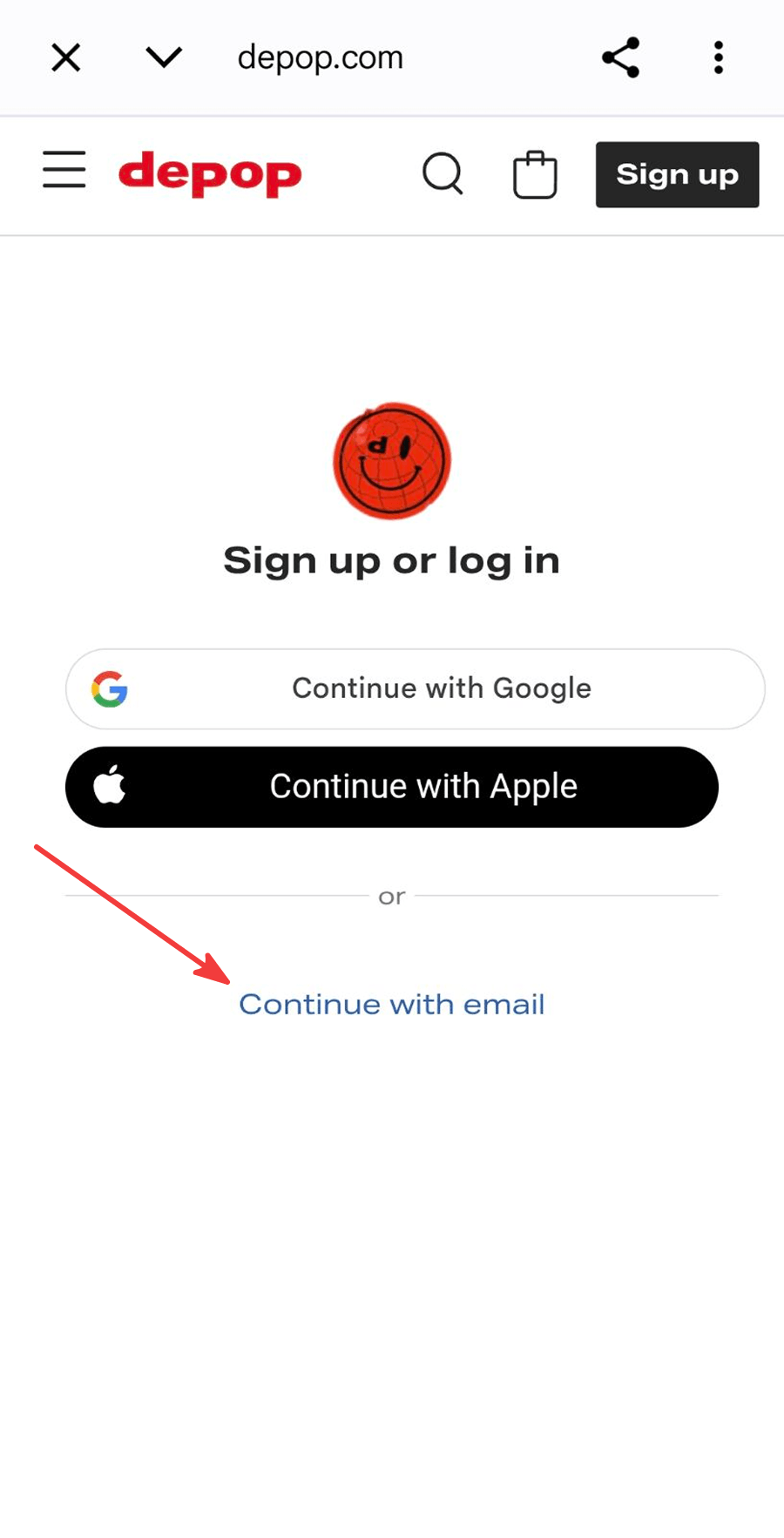
INFO
Logging in with Google or Apple isn't supported for Depop through Crosslist. Always choose Continue with email.
Depop will send a magic link to your email.
- Open the email, then long press the login button until an action menu appears
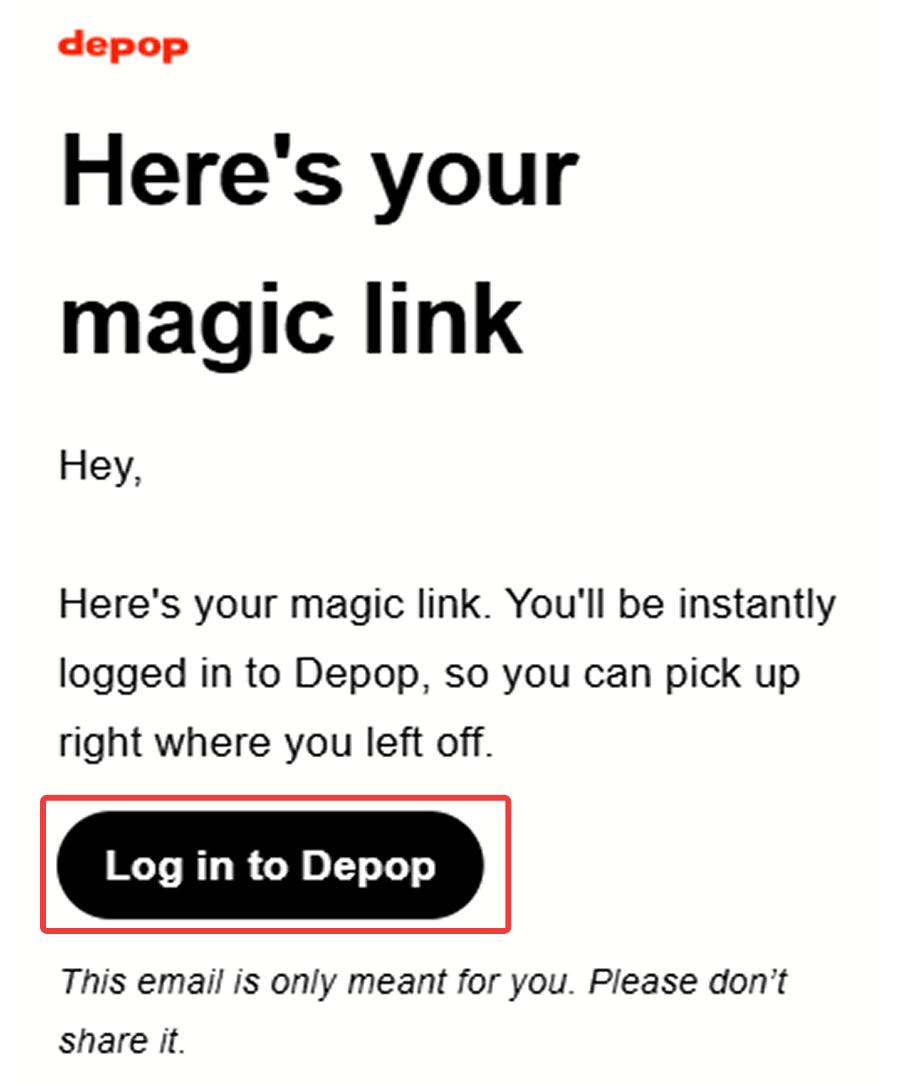
- Select Copy Link from that menu
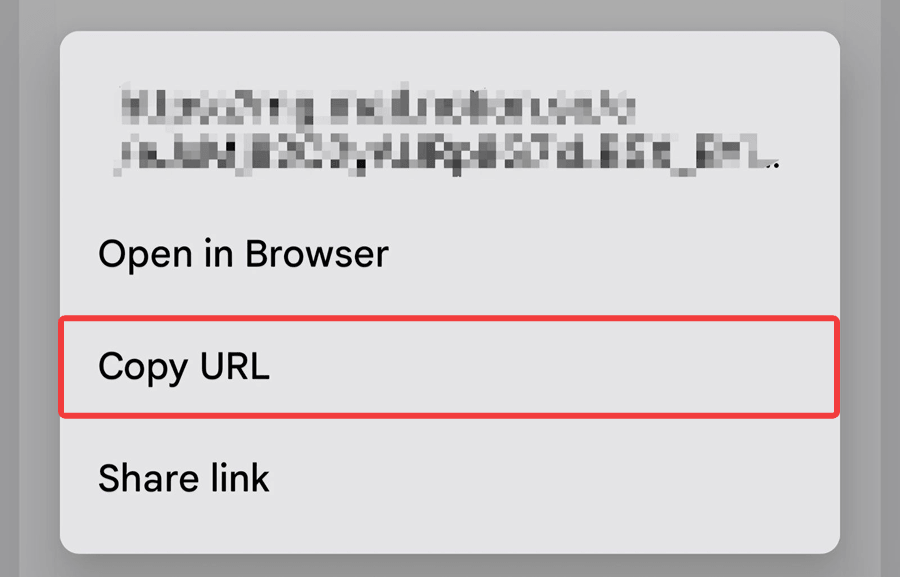
WARNING
Don't tap the button in the email. Tapping it opens the link directly, which causes it to expire.
If this happens, you'll need to repeat steps 4 through 6 to request a new magic link. Always long press and copy the link instead of tapping it.
If you're on iOS, please make sure to disable the URL preview feature first. Click here for more info.
- Go back to the Crosslist app, paste the link into the text field, and tap Ok
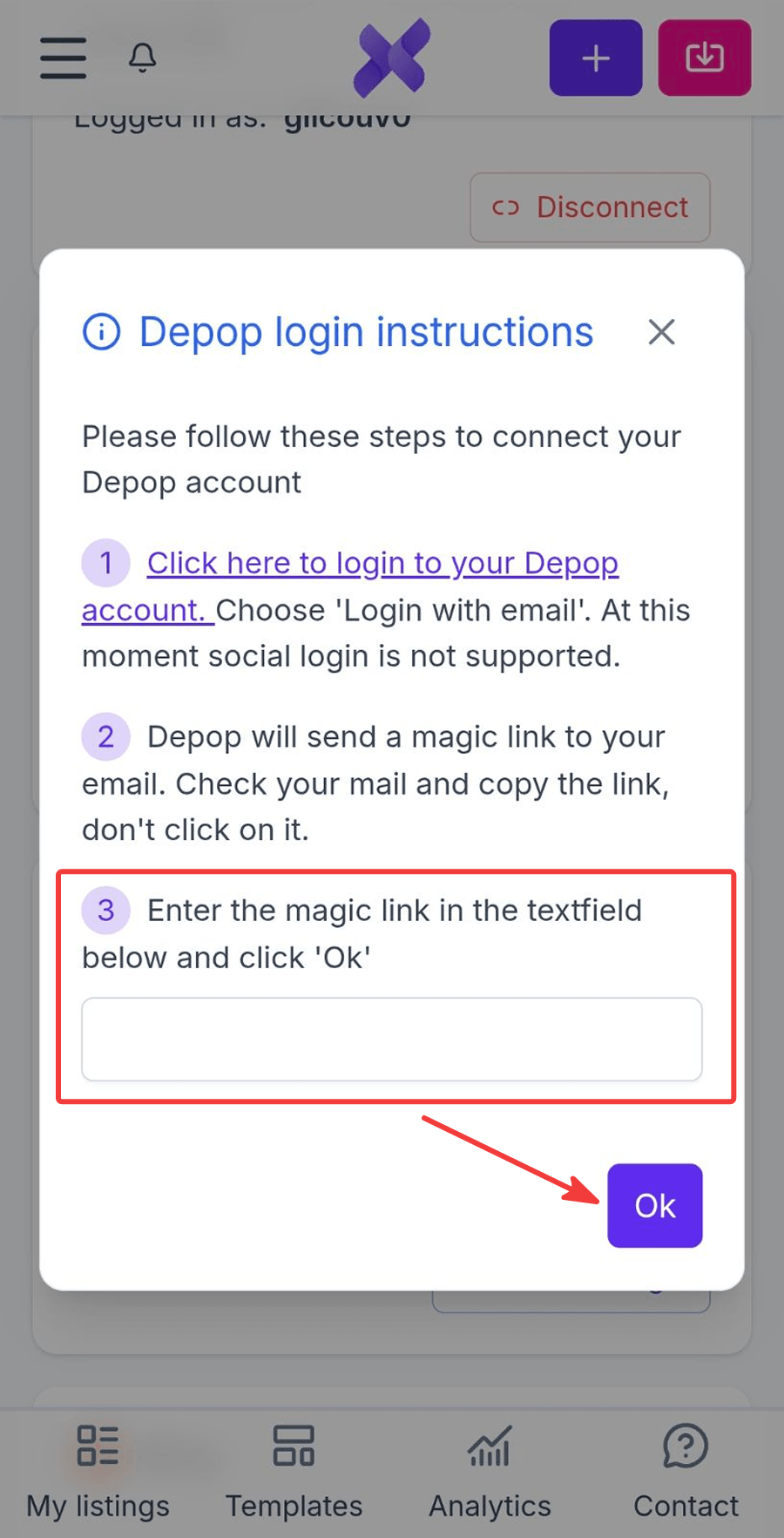
You're now successfully logged in to Depop through Crosslist.