

Appearance
Import listings from CSV
Use CSV import to create or update listings in bulk in Crosslist.
This is useful when you are moving listings from another system, preparing listings offline, or making bulk edits in a spreadsheet.
INFO
CSV import is only available on select Crosslist plans. Click here for more info.
Step 1: Download or edit the template
- Open the CSV template in Google Sheets here.
- Click File → Download → Microsoft Excel (.xlsx).
- Navigate to the Template sheet.
INFO
Alternatively, you can edit directly in Google Sheets
- Open the CSV template here.
- Make sure you are signed in with your Google account.
- Click File → Make a Copy.
- Navigate to the Template sheet.
The template also includes helper sheets:
- Categories (for valid Category id values)
- Sizes (for valid Size id values)
- Info (for valid field values)
Step 2: Fill in your listing data
Add your listing data to the Template sheet.
A few important rules:
- Use Id only when updating existing listings
- Use exact values for fields like Condition and booleans (
TRUE/FALSE) - Use category and size IDs (not labels)
- For multiple images, separate filenames with
|
Example for the Images column:
img1.jpg|img2.jpg|img3.png
Step 3: Export your file as CSV
Crosslist requires a .csv file, not an .xlsx Excel file.
- Make sure you are on the Template sheet.
- Click File → Save As (or Save a Copy).
- Choose file format:
CSV UTF-8 (Comma delimited) (*.csv) - Save the file.
INFO
Alternatively, you can also export from Google sheets:
- Open the file in Google Sheets.
- Make sure you are on the Template sheet.
- Click File → Download → Comma Separated Values (.csv).
WARNING
CSV export saves only the active sheet. Export the Template sheet, not Categories or Sizes.
Step 4: Prepare your image ZIP (optional)
If you want to import images, create a .zip file containing the image files.
Requirements:
- Filenames must match the Images column exactly
- Include the file extension (for example
.jpg,.png) - Use
|between multiple filenames in the CSV
If filenames do not match, the images will not import correctly.
Step 5: Upload your files in Crosslist
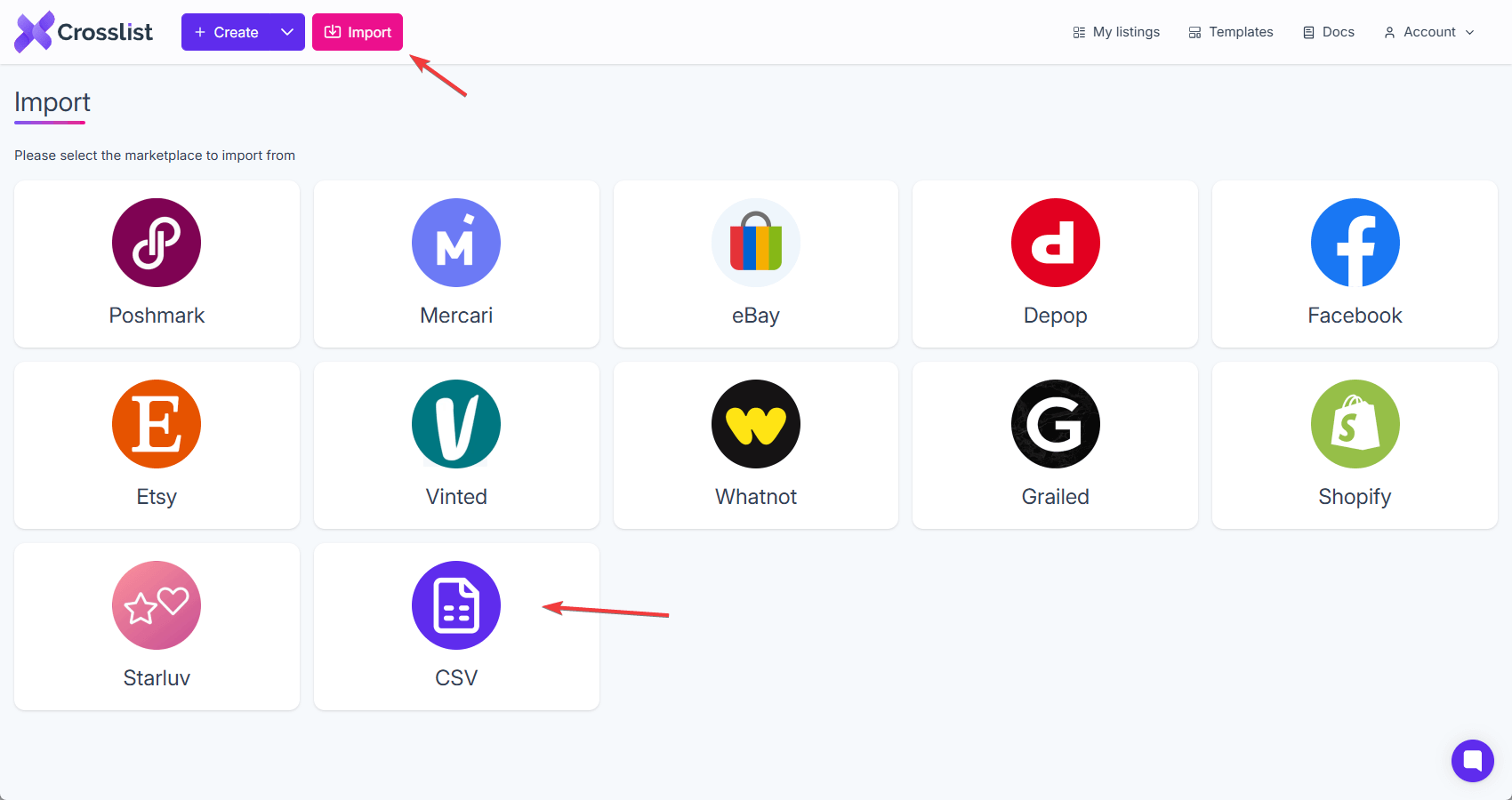
Navigate to the CSV import screen by clicking the Import button at the top of your screen. Then select CSV:
This will open the first step of the CSV upload process:
- Upload your CSV file (required)
- Upload your ZIP file with images (optional)
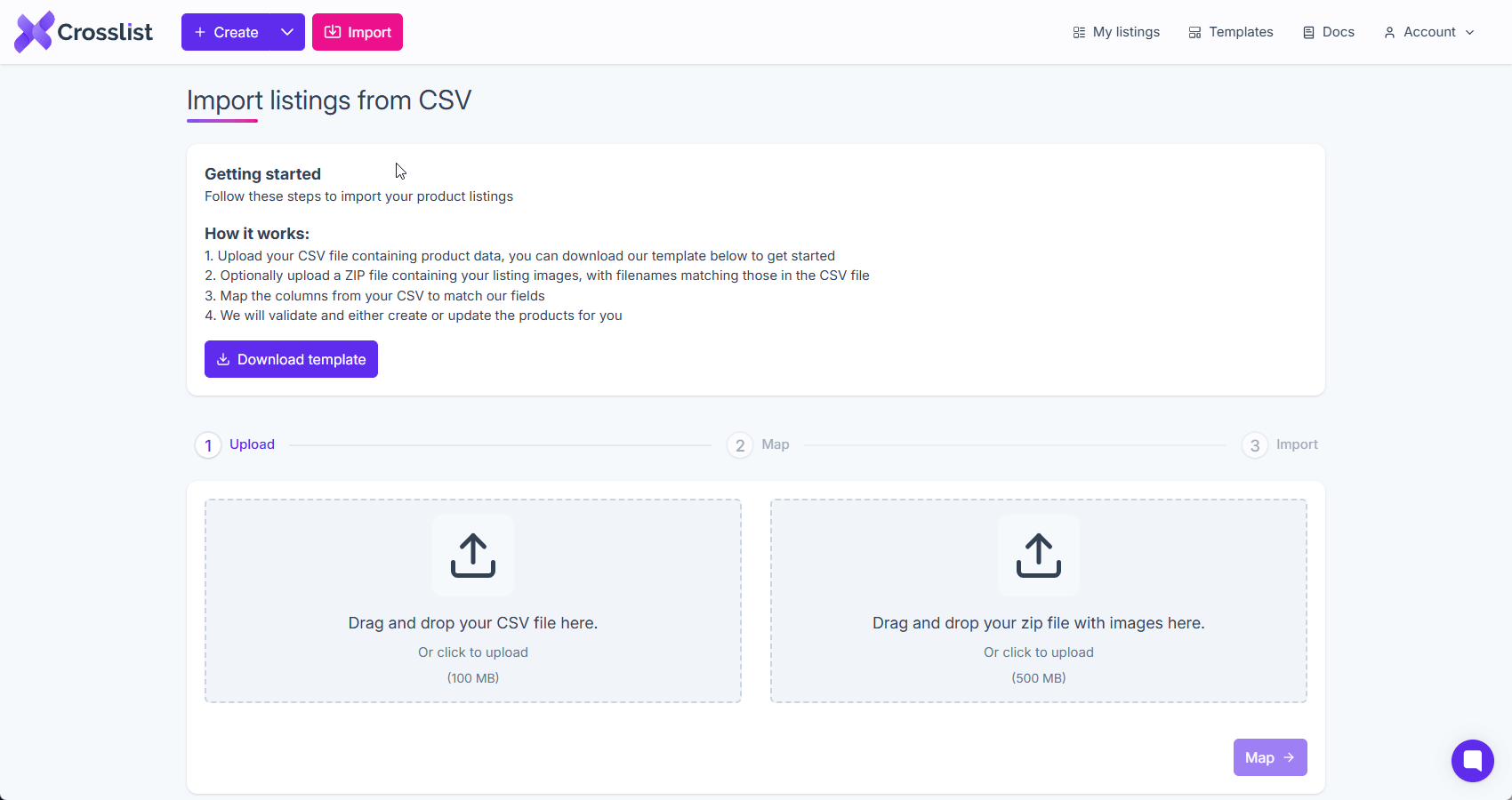
Then click Map to continue.
Step 6: Map your columns
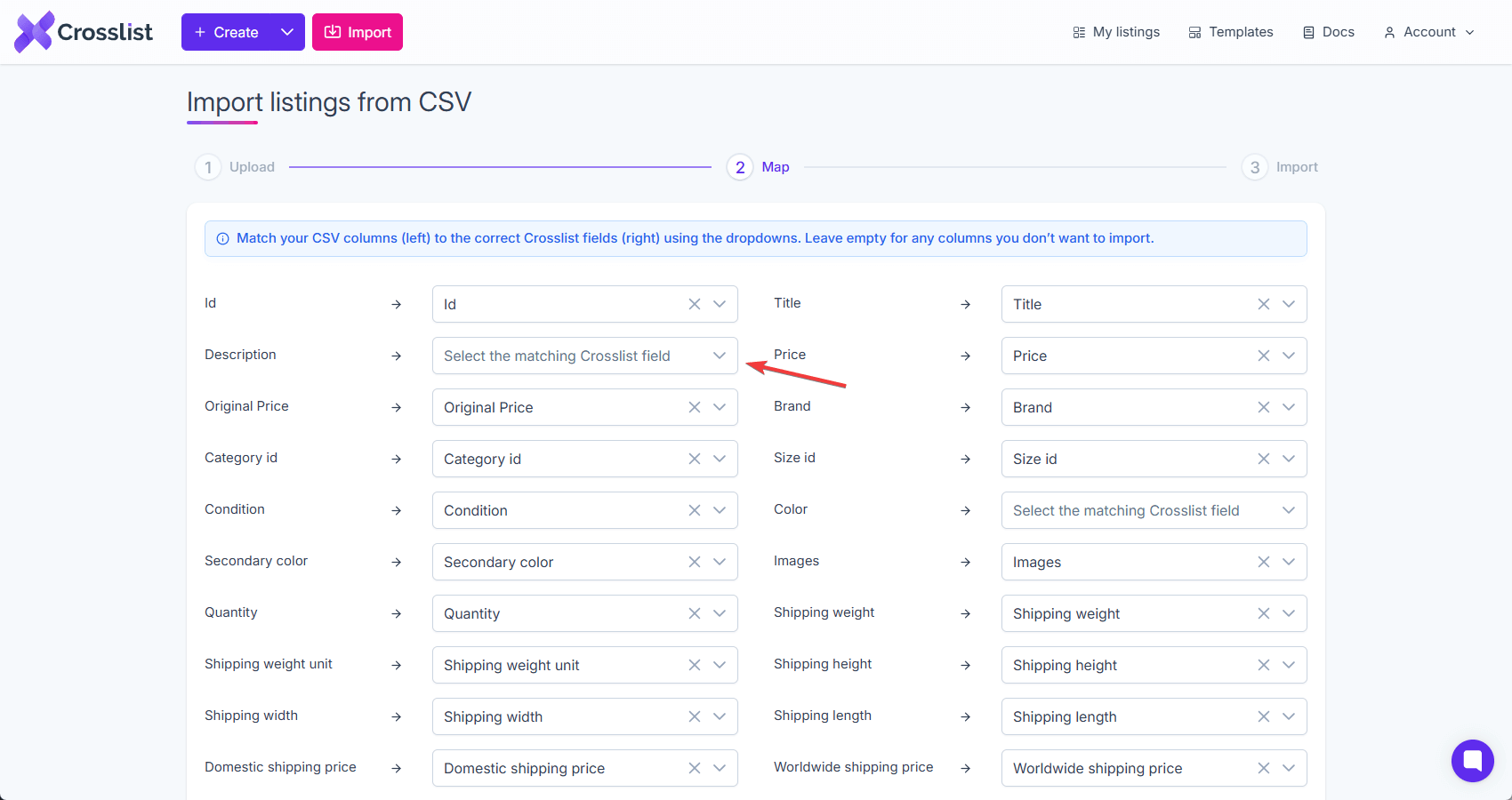
In the Map step, match each of your CSV columns on the left to the correct Crosslist field on the right.
INFO
- Review all mappings before importing
- Leave unused columns unmapped, or else they will overwrite the existing values in Crosslist
- Double-check fields with strict allowed values (for example Condition, Color, Is auction)
Step 7: Import your listings
In the Import step, Crosslist validates your data and processes the file.
The import works on an all-or-nothing basis. If even one row contains an error, the entire file will not be imported.
If there are validation errors, Crosslist will show the issues for each affected row.
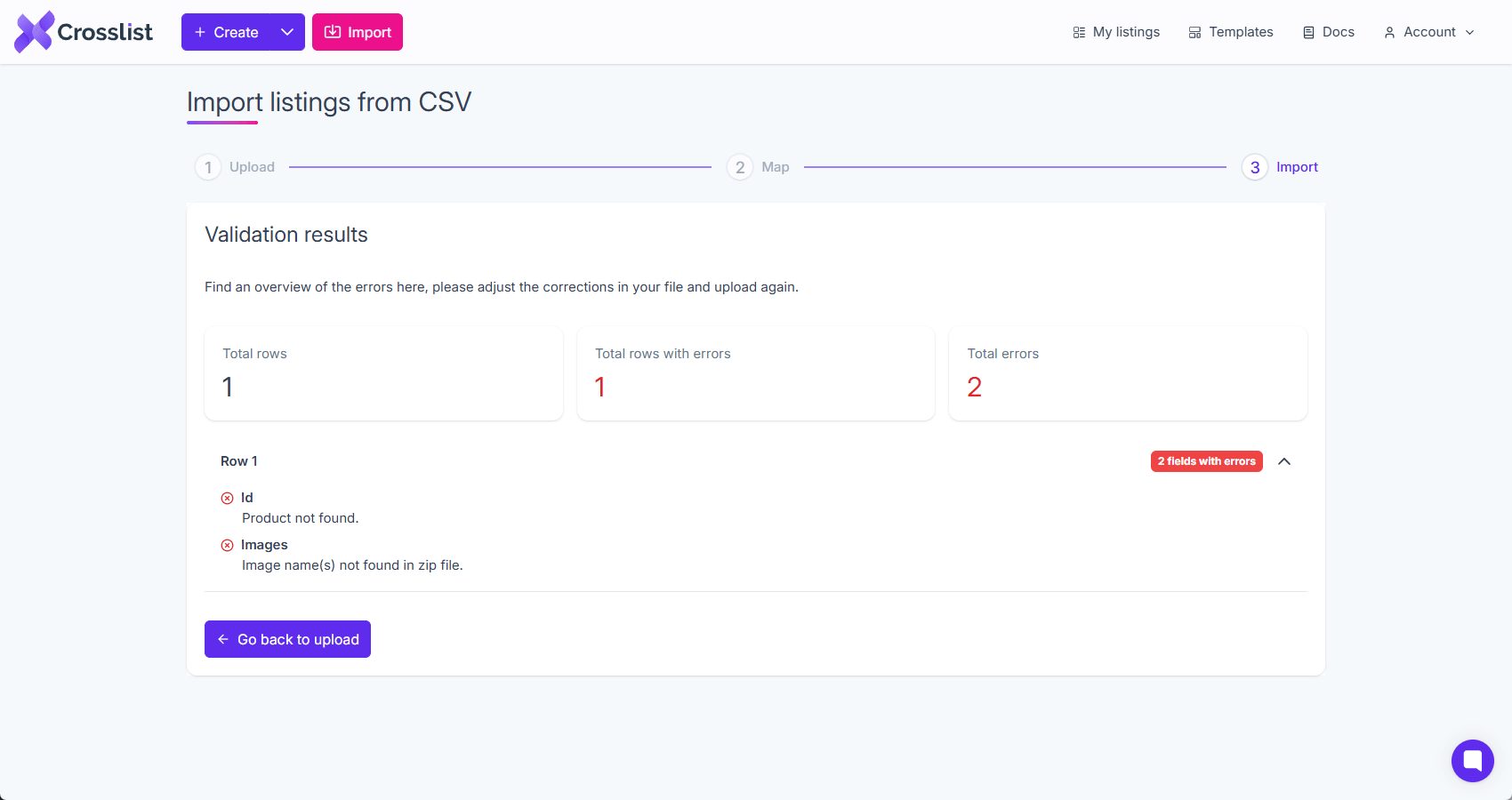
Please fix the errors in your CSV file and upload it again.
Creating versus updating listings
To create new listings:
- Leave Id empty, or
- Omit the Id column
To update existing listings:
- Include the Crosslist listing Id in the Id column
- Make sure each Id is unique in the file
WARNING
During updates, all mapped columns overwrite the corresponding Crosslist fields, including Images, even when the CSV value is empty. To prevent a field from being updated, leave that mapping column blank in the mapping step above.
Common import issues
- Invalid Category id or Size id
- Size id that doesn't match the size group of the category
- Wrong enum values (for example
Very Goodinstead ofVeryGood) - Boolean values not using
TRUE/FALSE - Image filenames in CSV do not match the ZIP file
- CSV exported from the wrong sheet
Supported fields
The following columns are supported for CSV import.
| Field | Explanation | Allowed values / format | Example input |
|---|---|---|---|
| Id | Unique Crosslist identifier for the listing. Only necessary when updating listings. | Crosslist id; must be unique. | 7d952d33-3e44-45d1-bf08-dacd9e8420a1 |
| Title | Short, searchable name of the listing. | Text; 5–255 characters. | Classic Denim Jacket |
| Description | Full description shown to buyers. | Text; can include line breaks; max 12 000 characters | Stylish vintage denim jacket in great condition |
| Price | Sale price. | Number; >= 0 (e.g., 49.99). | 49.99 |
| Original Price | Compare-at/MSRP price. | Number; blank or >= price. | 79.99 |
| Brand | Brand of the item. | Text. | Levis |
| Category id | Crosslist category id of your listing. | Existing category ID see sheet Categories | 0b6009b3-0082-7581-7b4b-096e0b105294 |
| Size id | Crosslist clothing size id. | Existing size ID see sheet Sizes; allowed values depend on the size group of the selected category. First check the size group in sheet Categories, then use sheet Sizes to find the allowed size ids. | f9ea6dc9-36f2-458a-3070-f8947835429a |
| Condition | Item condition state. | One of: NewWithTags, NewWithoutTags, VeryGood, Good, Fair, Poor. | VeryGood |
| Color | Primary color. | One of: Red, Pink, Orange, Yellow, Green, Blue, Purple, Gold, Silver, Black, Gray, White, Cream, Beige, Brown, Tan, Khaki, Turquoise, Apricot, Coral, Burgundy, Rose, Lilac, LightBlue, Navy, DarkGreen, Mustard, Mint, Multi, Clear. | Blue |
| Secondary color | Optional secondary color. | One of: Red, Pink, Orange, Yellow, Green, Blue, Purple, Gold, Silver, Black, Gray, White, Cream, Beige, Brown, Tan, Khaki, Turquoise, Apricot, Coral, Burgundy, Rose, Lilac, LightBlue, Navy, DarkGreen, Mustard, Mint, Multi, Clear. | LightBlue |
| Images | Image file names. | Pipe delimited list. Must match the file names (including extension) in the uploaded zip file | img1.jpg|img2.png|img3 |
| Quantity | Number of items available. | Integer >= 0. | 1 |
| Shipping weight | Weight for shipping calculation. | Integer >= 0; Uses the unit specified in the Shipping weight unit column (if provided). Otherwise, defaults to ounces when Crosslist is set to Imperial, or grams when set to Metric. | 2 |
| Shipping weight unit | Unit of the shipping weight. | One of: Ounces, Grams | Ounces |
| Shipping height | Package height. | Integer >= 0; Uses inches if Crosslist is set to Imperial, or centimeters if set to Metric. | 10 |
| Shipping width | Package width. | Integer >= 0; Uses inches if Crosslist is set to Imperial, or centimeters if set to Metric. | 30 |
| Shipping length | Package length. | Integer >= 0; Uses inches if Crosslist is set to Imperial, or centimeters if set to Metric. | 40 |
| Domestic shipping price | Shipping cost domestic. | Number >= 0 or empty. | 5.99 |
| Worldwide shipping price | Shipping cost international. | Number >= 0 or empty. | 14.99 |
| Free domestic shipping | Is domestic shipping free. | Boolean: TRUE/FALSE. | FALSE |
| Free worldwide shipping | Is worldwide shipping free. | Boolean: TRUE/FALSE. | FALSE |
| Tags | Search keywords. | Pipe-delimited tags. | denim | jacket|vintage |
| SKU | Stock keeping unit. | Text; should be unique. | SKU12345 |
| Who made | Who created the item. | One of: IDid, SomeoneElse, Collective. | SomeoneElse |
| When made | Production era. | One of: MadeToOrder, From2020To2024, From2010To2019, From2005To2009, From2000To2004, From1990s, From1980s, From1970s, From1960s, From1950s, From1940s, From1930s, From1920s, From1910s, From1900To1901, From1800s, From1700s, Before1700, Before2005. | From1990s |
| Smart pricing | Automatic pricing enabled. | Boolean: TRUE/FALSE. | FALSE |
| Smart pricing price | Price used for smart pricing. | Number or empty. | 10.5 |
| Accept offers | Can buyers make offers. | Boolean: TRUE/FALSE. | TRUE |
| Is auction | Auction format enabled. | Boolean: TRUE/FALSE. | FALSE |
| Auction starting price | Starting bid price. | Number; applicable if auction. | 20 |
| Internal note | Private internal note. | Text | Sample internal note |